smartCHECK V5.14 - Manual
Cirrus SR22T G5 · Checklist
Overview
The smartCHECK V5.14 Manual provides a comprehensive guide for using the smartCHECK checklist system, specifically designed for pilots of Cirrus aircraft, including the Cirrus SR22T G5. This manual outlines the features of the smartCHECK app, which utilizes advanced text-to-speech technology to assist pilots in managing their checklists during flight. It details how to navigate the app, use various checklist modes, and integrate the system into cockpit workflows. The manual is intended for pilots looking to enhance their operational efficiency and safety through the use of digital checklists.
- The smartCHECK app is designed for Cirrus aircraft, including the SR22T G5.
- Checklists are categorized into normal, abnormal, and emergency types, each color-coded for easy identification.
- GPS features enable automatic checklist activation and altitude announcements after takeoff.
- Users can create, edit, and share checklists with other pilots via email.
- The app allows customization of settings for checklist behavior and reminders.
Document
Source
Originally published by airwork.biz. Sprinkle hosts a reference copy with an added summary, specifications and searchable full text.
Document details
- Type
- Checklist
- Year
- 2023
- Pages
- 15
- File size
- 465 KB
- Publisher
- airwork.biz
Common. One of the most common aircraft types we track.
Most owners only have the POH. Here's the essential set for the Cirrus SR22T G5.
- Pilot's Operating Handbook / AFM
- Checklist
- Maintenance Manual
- Parts Catalog (IPC)
- Systems & Wiring
- Service Bulletins
- Type Certificate (TCDS)
Cirrus SR22T G5 for sale now
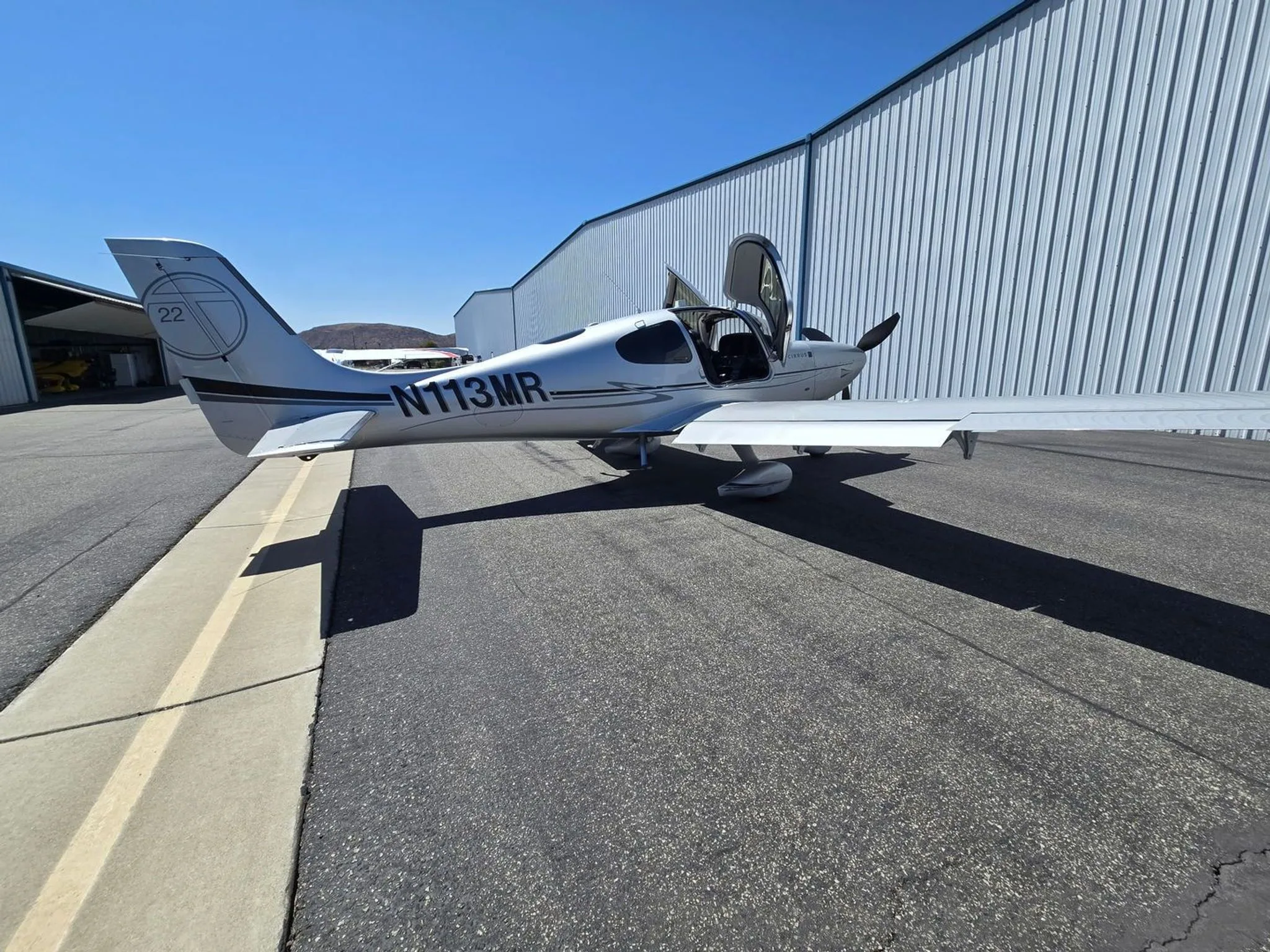


Free — save the SR22T to your watchlist and track it in one place.
More Cirrus SR22T G5manuals & documents
- AVIATION SERVICE DOCUMENT NOTIFICATIONService Bulletins
- CIRRUS AIRCRAFT SR22T GTS G6Systems Description
- Weight and Balance RevisionWeight And Balance
- FAA Approved Model List (AML) STC SA02658SEType Certificate
- FAA Approved Model List (AML) STC SA01818WIType Certificate
- Cirrus SR22T G5: Fast, Efficient Traveler - Aviation ConsumerPerformance Data
- AAIB Bulletin: 3/2019 G-SRTT EW/G2018/06/09Service Bulletins
- FAA Safety Briefing May/June 2019Airworthiness Directives
- 2015 CIRRUS SR22T G5 GTS (N9577P)Specifications
- Emergency Procedures for Cirrus SR22T G5Emergency Procedures
- Cirrus Perspective™ by Garmin – Cockpit Reference Guide for the SR22Avionics Manual
- PILOT’S OPERATING HANDBOOK AND FAA APPROVED AIRPLANE FLIGHT MANUAL for the CIRRUS DESIGN SR22Airworthiness Directives
If you fly the Cirrus SR22T G5, you may also be researching these.


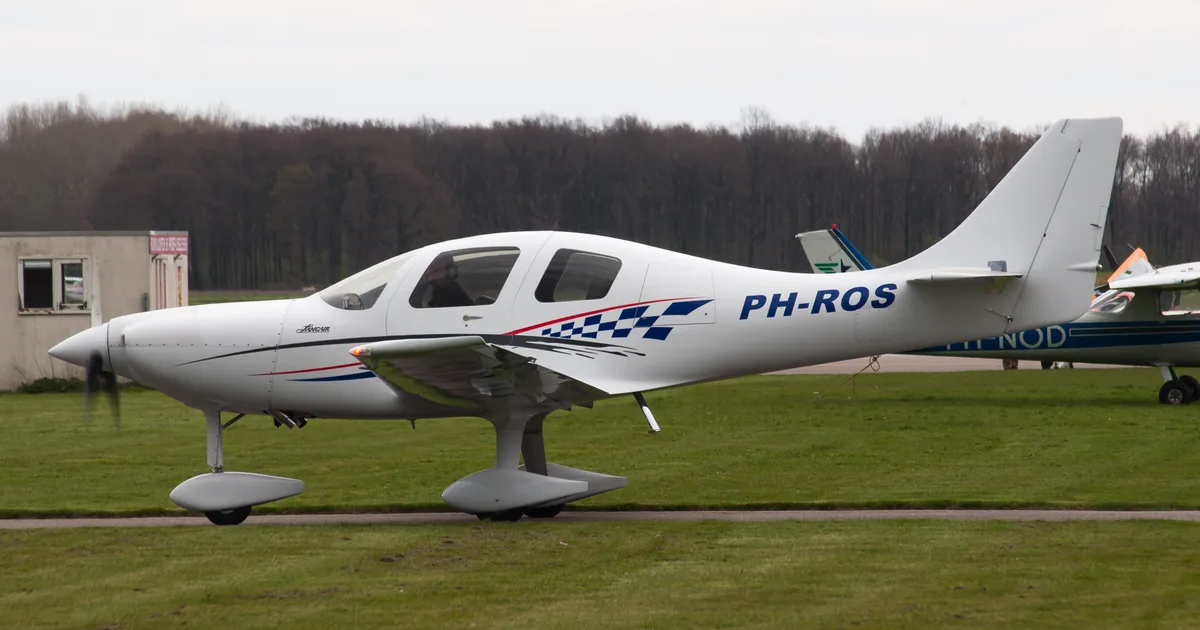

In this document
Normal Mode and Priority Mode
The smartCHECK app offers two display modes for checklists: Normal Mode, which provides a comprehensive view of all checklists sorted by flight phases, and Priority Mode, which allows users to select a defined set of checklists for streamlined access during flight. Users can switch between modes easily.
Checklist Types and Editing
Checklists in smartCHECK are categorized by color: blue for normal checklists, yellow for abnormal checklists, and red for emergency checklists. Users can create and edit these checklists directly within the app or using a dedicated Mac OS editor. The app also allows for the integration of documents and notes.
GPS Features
The smartCHECK app utilizes GPS for several automated features, including the automatic transition between flight phases and altitude announcements after takeoff. The app measures altitude based on the aircraft's speed and can display altitude above ground level (AGL) after reaching 35 knots during takeoff.
Checklist Exchange
Users can share modified checklists via email, allowing for collaboration among pilots. However, recipients must have purchased the original checklist to install any modified versions.
Automation and Settings
The app includes various settings for customizing checklist behavior, such as auto-read options, altitude display settings, and fuel reminders. Users can set parameters for automatic checklist activation based on flight phases and groundspeed.
Safety notes
- Ensure GPS is functioning properly for automatic features to work correctly.
- Checklists should be reviewed and modified as necessary to fit individual aircraft configurations.
Full document text
smartCHECK V5.14 - Manual (March 7, 2023) What it is smartCHECK is a checklist system for pilots. It can be bought and downloaded at Apple’s iOS Appstore for iPhone and iPad. Sophisticated text to speech technology reads written checklists to pilots. smartCHECK contains a lot of other interesting features like automatic and GPS driven checklist activation, annunciation of altitude above ground after takeoff, and integrated document browser and other tools like tools for noting the fuel level after flight and a tool for tracking the oil consumption of your engine. What you need smartCHECK runs on iPhone and on every iPad under „iOS“ but it needs GPS for the more advanced automatic features like automatic forwarding of flight phases, automatic checklist activation or altitude announcements. You can run smartCHECK on iPads without GPS by using an external Bluetooth GPS. You can also use smartCHECK on iPads without GPS - but you will not have the advanced features. The checklists will still be read to you. Android devices are not supported at this time. Normal Mode and Priority Mode There’s two ways to display the checklists, Normal and Priority Modes. Normal Mode is the „classic view“ of smartCHECK that contains all normal, abnormal and emergency checklists for the airplane, sorted by flight phases. The default flight phases are: GND - TAXI/TAKEOFF - AFTER TAKEOFF - IN FLIGHT - LDG - SHUTDOWN. Priority Mode is the list view you can select if you want to only use a defined set of checklists in flight. To use PM you have to select the checklists you mostly use in the settings. If you need to get any of the other checklists that are not part of your PM selection you simply tap „Normal Mode“ to get back to the full view. You can select any checklist to use in the Priority Mode: Blue, Red, Yellow - and even the green ones which you use for important documents you might want to access in flight, like pages from your flight manual. The 5 ways to use smartCHECK checklists 1. Tap and Read the Checklist: Use it like a paper checklist, Every time you tap the screen one line is marked as completed 2. Tap and Listen: Every tap on the screen reads one item of the checklist. Tap for the next item until checklist is completed. 3. Auto Read: Tap the checklist icon and the whole checklist is read to you the way like a copilot would read it to you. Stop and Resume any time by tapping the screen. If you want it then the checklist title will be read. Another option is to let the checklist say „checklist completed“. 4. For each checklist you can define (in Priority Mode only) if you want to use it in „auto read“ or „manual“ mode. For example you can set the Preflight Checklist to Manual and the After Takeoff checklist to automatic. 5. If you select the new „Challenge & Response“ mode in the checklist settings the app will only read the left side of the checklist – and you have to complete each line (not interactive!). How to use smartCHECK in the cockpit. Depending on your hardware, the equipment of your airplane and your type of mission you can use smartCHECK in several different ways. This is how you can integrate smartCHECK in your workflow. If you only use an iPad in your plane you can display smartCHECK full screen (double click on home button to go to other app like navigation. Or you can use smartCHECK in split screen / multitasking mode as a window in your navigation (or other) app. This works in portrait AND landscape mode. You can decide how much space you want to give each app. smartCHECK can occupy 1/3, 1/2 or the full screen - just like your navigation app. You can also „slide“ smartCHECK out of view by holding the small handle on top of the window and moving it beyond the screen border. You can always get it back just as easily. If you use an iPhone AND an iPad while flying you can run your favourite navigation app on the iPad and smartCHECK on your iPhone. In most installations you can only connect one device to your headset by Bluetooth though. Some audio panels allow the connection of several Bluetooth devices at the same time (PS Engineering PMA450B, Garmin GMA345). These are typical ways to use the audio features of smartCHECK in the cockpit environment. • Connect the iOS device directly to your Bluetooth headset • Connect your iOS device to your Bluetooth audio panel. Some audio panels like the two mentioned above let you connect several devices. This way you could get the audio from Foreflight or SkyDemon – but also the audio checklists from smartCHECK • Connect your iOS device with your conventional headset by using an adapter cable („Y-cable“) which is available at many pilots store. • Some airplanes have an auxiliary 3.5 mm audio-in socket for entertainment which can also be used to connect an iPhone/iPad to the audio system. You could even put a wireless BT adapter into that socket. Checklists smartCHECK was initially developed for pilots of Cirrus aircraft and therefore it comes with one Cirrus checklist (for thee SR22 G2/G3) and a general Light Airplane Template. You can use the Light Airplane Template to make your own checklist – or you can have a look in our store. We have made a couple of ready to use checklists for several popular light aircraft Checklists in the Store These checklists are available for free now: • Airbus A319/A320 (abbreviated for simulators) • Cessna C-172N Skyhawk • Cessna C-182P Skylane • Cirrus SR20-G1/G2 • Cirrus SR22-G2/G3 • Cirrus SR22T-G5 • Diamond DA40-180F • Mooney M20R Ovation 2 GX • Piper PA-28-151/161 Warrior • Piper PA-28-181 Archer • Socata TB20 • Light Airplane Template More airplane types coming over time If your airplane type is not available as a ready to use set, you have these possibilities: 1. Buy the checklist set of a similar airplane, modify and rename it. For example take the Piper Archer checklist and modify it for the Piper Dakota, which is a very similar airplane with
Show full textShow less
an almost identical checklist. Or use the Cirrus G5 checklist to make one for the G6 model. 2. Use the Light Airplane Template and your POH to make your own checklist (more about this later). 3. Load a checklist another pilot has made for this airplane based on the Light Airplane Template (more about this later). The other pilot can send you the checklist via eMail and you simply have to tap the attachment and select „smartCHECK“ to open the attachment. Before you save it you can rename the checklist (with your own registration). Cirrus Aircraft Checklists All Checklists made by us for Cirrus Aircraft contain a special checklist for using the CAPS System (Cirrus Airframe Parachute System). You will see a special red CAPS icon on the screen, tapping it opens the CAPS checklist. Cirrus pilots (and the pilots of other aircraft equipped with a BRS system) can use the altitude/ AGL feature to determine the approximate height above ground*. *Since smartCHECK does not contain a database of elevations the altitude AGL after takeoff is counted from a point on the runway where the plane reaches 35 knots. If the terrain behind the airport is rising the real altitude AGL will be lower than the indication, and vice versa. Checklist exchange Checklists made or modified by users can be sent to other pilots by eMail and installed in their smartCHECK app. This works with both of the included checklists, meaning that you can modify one of the two included checklists and send it to any other smartCHECK user for installation in their app. In case of the pad checklists from the store the receiving pilot must have bought the base checklist for that airplane before he can install a modified version of that checklist sent to him by another pilot. Checklist types and Editing BLUE checklists are normal checklist YELLOW checklists are abnormal checklists RED checklists are emergency checklists Any of these three can be created and edited. Simply type the text, the system will convert the text to speech when using the checklist. GREEN icons are for documents you want to store and display inside smartCHECK. You might want to store some of these documents in smartCHECK for quick access: • Aircraft documents (insurance, noise certificate, ARC) • Tables from the POH (takeoff performance, cruise settings etc.) • Photos or drawings • Blank page for typing notes • Drawings or notes for procedures (holding entries, procedure turns) • Frequency tables Note about the „text to speech system“: Apple’s text to speech system still has some minor flaws regarding the pronounciation of some words. For example „ignition“ is read „igg-nyshon“ by the system. The workaround is to spell the word phonetically (try and error …) until it works. For the above example „iggnition“ works the best. Of course this means that you have the wrong spelling in the checklist. To avoid this you can edit the checklist on a PC/MAC using a text editor. If you open the file you will have the possibility to edit both the spelling and the pronounciation. For correct procedure see explanation below. Editing Checklists inside the App To edit a checklist in the app simply open the checklist. If it starts reading, please STOP the checklist by tapping the screen once and use the edit screen in the upper right corner. Make a long tap in the field you want to edit, then use the SAVE/CLOSE button to save the changes. You can also edit the order of the items in each checklist by touching the „3 lines“ symbol at the end of each line and sliding the entry up/down. don’t forget to save the changes. Editing Checklists with the NEW MAC OS Editor for smartCHECK With the release of smartCHECK V5.9 there will also be a dedicated MAC OS app, the „smartCHECK editor“ (available in the Apple MAC OS Store for $ 3,99) that lets you edit your checklists in a quick and comfortable way. • Send the checklist you want to edit to your Mac by eMail • Save the checklist to your desktop and open it with the Editor • Edit and test the checklist • Create Green Icons for Documents you want to add to your checklist • Send the checklist to your iPhone or iPad by eMail and install it The editor lets you rewrite existing checklists, add new checklists and documents you want to have at hand in flight. In the (rare) case the text to speech system uses wrong pronounciation you can add a phonetic version of the word (in the „spoken“ fields) and test it. You can also use the „spoken“ fields if you want to keep your checklist in the original version of the manufacturer in written form but want to use abbreviations etc. when the checklist is being read to you. Editing Checklists on PC/MAC manually without the smartCHECK editor Please only try this if you know how to edit .JSON files! 1. Go to the home screen of the app and send the checklist to yourself (Nut symbol upper right corner, „edit checklist collections“. Check the box on the bottom of the screen if you want to send the documents you uploaded for the green icons as well. 2. Open the eMail you send yourself and save the attachment to a folder on your desktop. 3. Rename the file extension („.smckzip“) to „.zip“ and unzip the checklist with a double click. 4. You can now (carefully!) edit the checklist „JSON“ file in any text editor, but keep in mind that the smallest details are important. One missing blank or comma – and it will not work. Try to understand the structure of the checklist and then edit it according to your needs. Each entry contains a „spoken value“ and a „written value“. You can use the spoken value field in cases where the text to speech system has problems with the pronounciation. For example „propallur“ works better than the correct spelling „propeller“ (which I find strange, but who am I …). 5. When you are finished with editing the file you have to zip it again and after zipping you have to rename the extension to .smckzip again (that’s smartCHECK’s version of „zip“). .zip only will not do. 6. Send the file to yourself again by eMail and open the attachment on the iPhone or iPad that contains smartCHECK. Select smartCHECK to open the file, edit the checklist name (if you want) and save it. The new/edited checklist is now in integrated in your smartCHECK app. You can save your checklist on your home computer or in a cloud service. 7. Important: If you add an entry to the checklist then the first letter in the „value“ field (right field) must be upper case - otherwise there will be no pause between „key and value“. Note: We plan to develop a website/user community on which checklists can easily be made and exchanged. For the time being you have to use the above procedure (an occasional „f*** you“, when you mess up, is included in the base price). Spelling Mistakes in Checklist (sxxt happens!) If you find a mistake in the ready checklist sets you have downloaded from our store you might not be able to correct the spelling or pronounciation but instead you have to do it on the PC (because some editing fields are not visible in the app). The best workaround im this case is to delete the wrong entry and make a new one with the correct spelling and then slide it to the correct position in the checklist. If you hesitate to do that please send eMail to info@airwork.biz and we’ll correct and update the checklist. Automation and GPS smartCHECK uses the GPS for some tasks and this version (V4.2): • Auto forward flight phases • Detect, display and announce altitude above the takeoff runway • Open and read checklist automatically and hands free (and go back to main menu). At this time this is what smartCHECK can do hands-free: • Switch flight phase from GND to TAXI when first movement of airplane is detected • Switch from TAXI/TAKEOFF to AFTER TAKEOFF when a groundspeed of 35 knots is reached • Open and read the AFTER TAKEOFF checklist hands free at an altitude AGL the user has set in the settings • Read the CLIMB checklist automatically (right after the After Takeoff checklist) • Open and read the CRUISE checklist at a ground speed the user has set in the settings • Announce the Altitude above ground after takeoff (set range in settings) • Display altitude above ground in big red letters (important for airplanes with BRS/CAPS) Features and Settings Homescreen Store (plus sign) Select and download ready checklist sets based on the original POHs (Pilot Operating Handbook) of these airplane types. After download you can rename the checklist your registration and modify it according your own equipment and priorities Menu (nut symbol) Here you will not only find the Imprint and the (legally required) Terms and Conditions but also the Version info – and a feature called „Edit Checklist Conditions“. Use „Edit Checklist Collections“ to • Send edited checklists to other pilots (you can also attach documents you have uploaded) • Send complete checklists with all attachments to yourself. Store them in a cloud service and have access to your own personal checklist set from anywhere. From here you can also send it to your other devices Tap the white triangle next to the selected airplane type to select other airplanes in your collection. Tap FLY to start a new flight Main Screen When you first tap „FLY“ the main screen of smartCHECK will open with the „GND“ (ground) phase open. You can horizontally scroll through the flight phases by using the flight phases bar (iPhone) or also by swiping the pages (iPad only at this time). If you want to change the order of the checklists on the screen simply make a long tap and move the icons around as you wish. Note: works with iPad version only. STOP FLIGHT Key Use this button to stop a flight and to return to the home screen. PRIORITY MODE Key Use this key to select the PM mode, but you have to select the checklists you want to use in PM first in the settings. Settings button and GPS indicator (upper left corner). Tap the settings button to open a sidebar with all settings. The settings button also serves as a n indicator for GPS signal strength. If it’s green, the device has good GPS reception and you can count on the automatic features to work. 1. Auto forward flight phases: With the GPS on (check it is on in location services) you can select to automatically forward flight phases. At this moment GND->TAXI and TAKEOFF>AFTER TAKEOFF are possible 2. Auto read ON/OFF: Let the app read the whole checklist. If set to OFF you have to tap for each checklist item. 3. Screen „auto lock“ ON/OFF. Some business iPhones will always lock the screen after a certain time for security reason („never“ setting not available). With this switch you can force smartCHECK to stay on. Brightness settings and Night Mode. Day and Night Switch. Audio Settings: Voice ON/OFF to mute the reading feature, Altitude Callout ON/OFF. If you set it ON you can select a range of altitudes AGL that will be announced after takeoff. With „pause duration“ you can set the length of the pause between the items that are being read in „auto read“ mode. You can also switch on audio for the groundspeed feature here. Priority Mode Settings: Use this button to select the checklists you want to use in „Priority Mode“ which is a simplified and more practical list view of your checklists. In normal flight operations you will almost never need all the checklists, abnormal checklists and emergency checklists at hand. With PM you can select the ones you normally use and display them in a more ergonomical list view. Here you can also select which checklists you want to use in the fully automatic mode („auto read“) or in manual mode (one item per tap). Simply tap the checkbox once or twice to select the mode you want. Checklists that are set to manual will be marked with an „M“ on the Priority Mode Main Screen. Checklist settings. Use this button to: • Select checklist for priority mode (the ones you use most often and which you want to be displayed as a list of checklists for normal flights • Read Checklist title: Will read the name of the checklist when it’s opened. • Announce checklist completed: Will end the checklist with telling you it is completed. • Automatic After Takeoff Checklist: Will open and read After Takeoff Checklist at an altitude AGL you will set with the wheel below • Read Climb Checklist automatically: If selected the After Takeoff Checklist will be followed by the Climb Checklist • Automatic Cruise Checklist: Select a typical groundspeed for cruise and the cruise checklist will be read to you when reaching this speed. Do not select a speed too high, because you might not reach it with headwind (SR71 Drivers can ignore this note). • Select Groundspeed Feature: If ON then the Groundspeed will be displayed (and announced if switched on in the audio settings) after the Final Checklist was completed. The groundspeed can be shown/read in kts, mph or km/h. The groundspeed feature will stop if the stop is below 35 kts (or the equivalent in mph or km/h) or if another checklist is selected, for example in case of a go-around IMPORTANT NOTE: For the automatic and GPS driven features like the „automatic after takeoff checklist“ to work or the display of the altitudes AGL after takeoff you will have to reset the app after each flight by using the STOP FLIGHT key. Altitude Settings. Display Altitudes on Screen: • The selected altitudes above the takeoff runway will be displayed on the screen in 100 ft steps. • Note: smartCHECK V4.0 does not (yet) contain an airport database. • We make a GPS measurement of the altitude (MSL) at the moment the airplane reaches a groundspeed of 35 kts in the takeoff roll and we go from there. • If you’re at 1312 ft MSL at the moment you reach 35 kts „100 ft“ will be displayed (and announced) at approximately 1412 ft. • This feature will only work if your GPS • reception is good. In my Cirrus airplane (plastic!) it works perfectly, in some types you might need an external GPS device. The Fuel Reminder settings. The fuel reminder is just a simple feature that lets you note the fuel status after landing, so that you don’t have to switch on the avionics the next time you fly to check the fuel level. Set the capacity of your fuel tanks and switch on „Display fuel fuel status“. When you start your next flight you will first see a magenta colored icon that gives you information about the fuel status from your last flight, you can also set it to „full fuel“. When you reach the „Shutdown“ flight phase in classic mode OR when you stop a flight from „Priority Mode“ (List view) the reminder will open again and you can set the fuel level before you can use the shutdown checklist. Note: Obviously using this feature only makes sense if your airplane is equipped with a fuel totalizer. Do not guess the fuel status. There’s also a fuel switch timer with two settings which can remind you about switching fuel tanks. You can set the interval you want (60/30/30 … minutes or 60/60/60) and the app will remind you to switch fuel tanks. The timer will start when the airplane reaches 35 knots (groundspeed) and stop again when slower than 35 knots. In the future the fuel switch timer will have a memory feature, for now iit will start counting from zero with the next flight. Oli Check feature. Switch on this feature if you want to keep track of your engine’s oil consumption. Enter the total flight time and then note the oil level before each flight and how much oil you have added and you will get a nice list that shows the oil consumption per hour. Note: do not forget to wipe off the dipstick before each measurement to get good results. Oil tends to climb up the dipstick and your actual oil level might be lower than what you first see. Also do not put in too much oil. In many airplane types oil will be blown out of the engine if the level is too high, and this might give you the false impression that your oil consumption is high. Use this button to add or to delete checklists. If you want to add a checklist the next step will allow you to create a … • Normal checklist (blue) • Abnormal checklist (yellow) • Emergency Checklist (red) • Document Icon (green) The Filter toggle button lets you filter the displayed checklists by their color. Each tao changes the display. The filter button works differently on iPads and iPhone. smartCHECK V5.14 Manual, Version 1.0, December 2023. This manual is a work in progress and will occasionally be updated. Have fun with smartCHECK! Is it perfect? No, not yet. Is it great fun and a big help in the cockpit? Definitely yes! And it’s getting better all the time. airWORK aviation media UG (haftungsbeschränkt) Destouchesstr. 46 80803 Munich Germany info@airwork.biz www.airwork.biz
What's in the Cirrus SR22T G5 TCDS
A Type Certificate Data Sheet (TCDS) is the FAA's record of what an aircraft type was approved as. It is the source of truth for weights, seating, fuel and the rules the design was certified against. Expand any line to see what it means.
1,001 Cirrus SR22T G5 parts for sale
See all →
Parts listed for sale by vetted eBay sellers — confirmed on eBay at checkout.