Weight & Balance Guide - ForeFlight
CESSNA 310L · Weight And Balance
Overview
The ForeFlight Weight & Balance Guide provides pilots with a comprehensive overview of the Weight & Balance (W&B) tool available in ForeFlight Mobile. This guide is designed to assist pilots in calculating the weight and balance of their aircraft in real-time, ensuring safe operation within the aircraft's limitations. It covers various types of W&B tools, including Legacy, Enhanced, and Integrated Weight & Balance, and explains how to create and manage W&B profiles for different aircraft configurations. The guide also includes detailed instructions on gathering necessary information, using templates, and understanding weight definitions and limits. Overall, it serves as an essential resource for pilots to effectively manage their aircraft's weight and balance during flight planning.
- Basic Empty Weight (BEW) must be accurately recorded from the aircraft's last weighing.
- Forward and Aft CG Limits are critical for ensuring safe operation and must be defined in the W&B profile.
- Templates can be prebuilt, blank, or legacy, depending on the aircraft's needs.
- Weight definitions include Max Takeoff Weight (MTOW), Max Landing Weight (MLDW), and Max Zero Fuel Weight (MZFW).
- Pilots should verify all data in the W&B profile against the aircraft's flight manual.
Document
Source
Originally published by cloudfront.foreflight.com. Sprinkle hosts a reference copy with an added summary, specifications and searchable full text.
Document details
- Type
- Weight And Balance
- Year
- 2023
- Pages
- 85
- File size
- 8.2 MB
- Publisher
- cloudfront.foreflight.com
Common. Rarer than 2% of the aircraft models we track.
Most owners only have the POH. Here's the essential set for the CESSNA 310L.
- Pilot's Operating Handbook / AFM
- Checklist
- Maintenance Manual
- Parts Catalog (IPC)
- Systems & Wiring
- Service Bulletins
- Type Certificate (TCDS)
CESSNA 310L for sale now

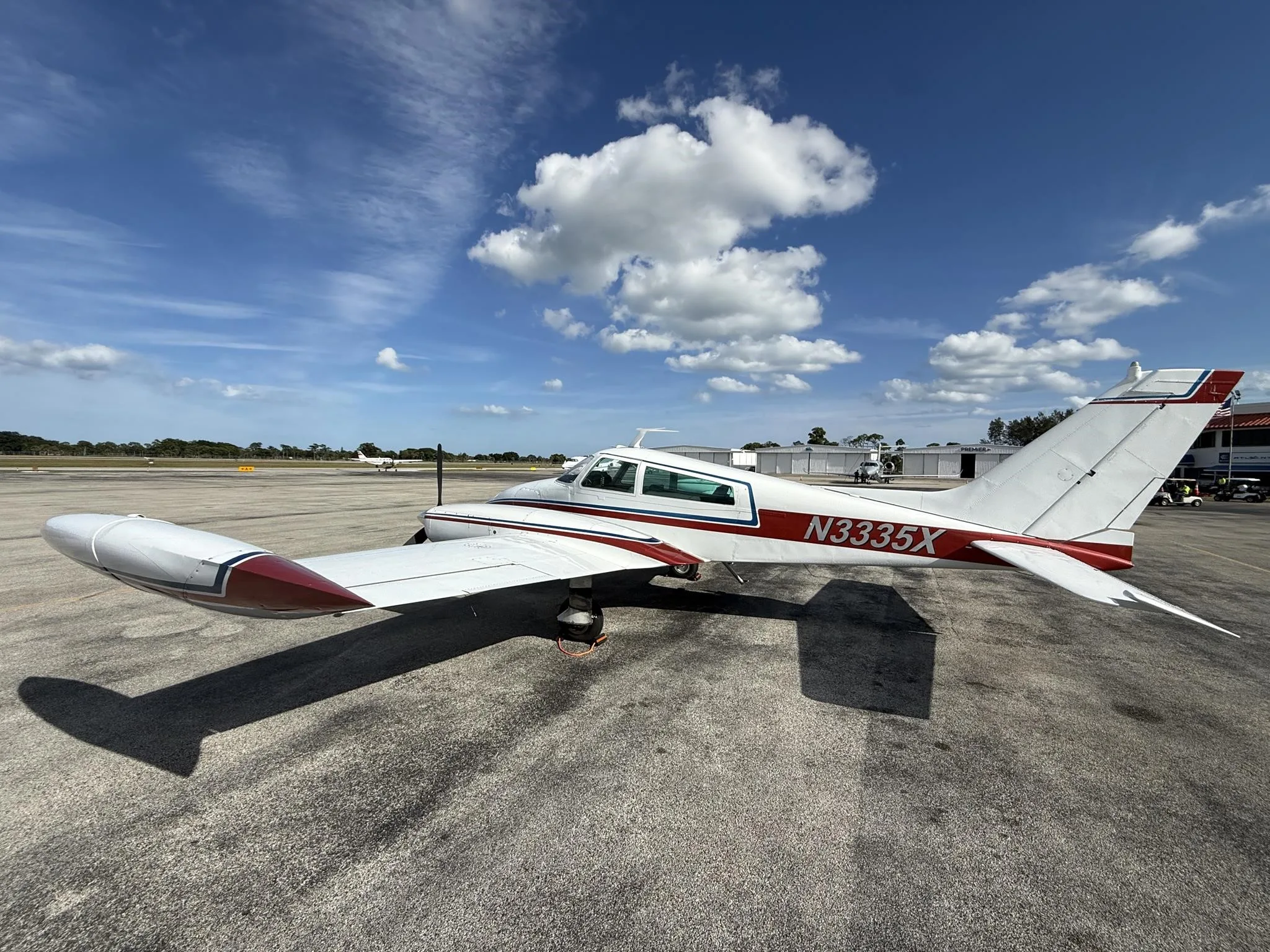
Free — save the 310L to your watchlist and track it in one place.
More CESSNA 310Lmanuals & documents
See all 19 →- PILOT SUPPLIES - Wing Aero ProductsTraining Manual
- Airworthiness Directive Schedule Amendment Nr 24-07 - CAAOther Documents
- PMA Application and Pump Cross Reference - Aircraft SpruceService Bulletins
- EASA - J.P. InstrumentsSupplemental Type Certificate
- 28V Alternator Controller Units (ACU) Cross ReferenceWiring Diagram
- AAIB Bulletin No: 2/2004Service Bulletins
- Airworthiness Directives; McCauley Accessory Division, The Cessna Aircraft Company, Model C35, C72, C74, C75, C80, C86, C87, C92, and C93 Series PropellersService Bulletins
- SCHEDULE OF AIRWORTHINESS DIRECTIVESAirworthiness Directives
- Aviation Safety Digest 117Other Documents
- GENERAL AVIATION INSPECTION AIDSOther Documents
- PILOT'S OPERATING HANDBOOK - flight examinersPilot's Operating Handbook
- Cessna 310L, G-AZUYOther Documents
If you fly the CESSNA 310L, you may also be researching these.



In this document
Types of Weight & Balance Tools
ForeFlight Mobile offers three types of Weight & Balance tools: Legacy, Enhanced, and Integrated. Legacy W&B is the original tool, while Enhanced W&B, introduced in March 2022, includes additional features and is recommended for all users. Integrated W&B is available for Performance-tier accounts and allows for seamless integration with flight planning.
Creating an Aircraft Profile
Before adding a Weight & Balance profile, an aircraft profile must be created. This involves entering the aircraft's tail number and type in the General section of the aircraft profile. Accurate data is crucial for effective W&B calculations.
Weight & Balance Profile Required Information
To create a W&B profile, pilots must gather essential information, including Basic Empty Weight (BEW), Basic Empty CG, weight limits, and forward and aft CG limits. This information is typically found in the aircraft's flight manual.
Weight & Balance Template Design
The W&B template consists of four sections: General, Stations, CG Limits, and Envelope Preview. Each section must be completed accurately to ensure proper weight and balance calculations.
Calculating Weight & Balance
The guide details the process for calculating weight and balance, including using curtailment tools, standard weights, and passenger distribution. It emphasizes the importance of adhering to weight limits and CG limits for safe aircraft operation.
Safety notes
- Ensure all weight and balance calculations are completed before flight to prevent exceeding limits.
- Verify that the correct aircraft type and variant are selected to avoid incorrect data usage.
Full document text
ForeFlight WEIGHT & BALANCE Guide Copyright © 2023 ForeFlight LLC. All rights reserved. The unauthorized commercial distribution of this manual or any revisions is strictly prohibited. ForeFlight® is a registered trademark of ForeFlight, a Boeing Company, and may not be used without the explicit written consent of ForeFlight. CONTENTS DEFINITIONS ...................................................................................................6 INTRODUCTION ...............................................................................................7 1.1 Types of Weight & Balance Tools ......................................................................8 1.1.1 Legacy Weight & Balance .............................................................................8 1.1.2 Enhanced Weight & Balance ........................................................................8 1.1.3 Integrated Weight & Balance ........................................................................8 1.2 Enhanced Weight & Balance Differences .........................................................9 1.3 Converting from Legacy to Enhanced ............................................................10 WEIGHT & BALANCE PROFILES ...................................................................11 2.1 Weight & Balance Profile Required Information.............................................12 2.2 Creating an Aircraft Profile...............................................................................13 2.2.1 Aircraft Profile Weights Section...................................................................14 2.3 Adding a Weight & Balance Profile..................................................................15 2.3.1 Adding Profiles with the Aircraft View..........................................................15 2.3.2 Adding Profiles with the Weight & Balance View ........................................15 2.3.3 Adding Profiles with the Flights View ..........................................................16 2.4 Types of Templates ...........................................................................................17 2.4.1 Prebuilt Templates.......................................................................................18 2.4.2 Blank Templates..........................................................................................19 2.4.3 Legacy Templates .......................................................................................20 2.5 Weight & Balance Template Design.................................................................21 2.5.1 General Section ..........................................................................................22 2.5.2 Stations Section ..........................................................................................23 2.5.3 CG Limits Section .......................................................................................24 2.5.4 Curtailment Options ....................................................................................27 2.5.5 Envelope Preview .......................................................................................28 2.5.6 Use %MAC .................................................................................................28 2.5.7 Gear Retraction Moment Change ...............................................................29 2.6 Types of Weight & Balance Stations ...............................................................30 2.6.1 Single Seat..................................................................................................30 2.6.2 Row of Seats...............................................................................................31 2.6.3 Cargo ..........................................................................................................32 2.6.4 Aircraft Items ...............................................................................................32 2.6.5 Fuel Tanks...................................................................................................32 2.6.6 Include in BOW ...........................................................................................34 2.6.7 Station Notes ..............................................................................................35 CONTENTS MIGRATION ASSISTANT ................................................................................36 3.1 Migration Assistant Discrepancies..................................................................38 COMPLETED W&B PROFILES .......................................................................39 4.1 Aircraft with Multiple Weight & Balance Profiles ...........................................40 4.2 Copying, Editing, and Deleting Profiles ..........................................................40 4.2.1 Copying, Editing, and Deleting with the Aircraft View .................................40 4.2.2 Copying, Editing, and Deleting with the W&B View ....................................40 4.2.3 Copying, Editing, and Deleting with the Flights View ..................................41 4.3 Sharing Weight & Balance Profiles..................................................................42 4.3.1 Sharing Profiles with the Aircraft View ........................................................42 4.3.2 Sharing Profiles with the Weight & Balance View .......................................42 4.3.3 Sharing Profiles with the Flights View .........................................................43 4.4 Importing a Shared Profile ...............................................................................44 4.5 Weight & Balance Profile Missing Details.......................................................45 CALCULATING WEIGHT & BALANCE............................................................46 5.1 Calculating Weight & Balance..........................................................................46
Show full textShow less
5.1.1 Curtailment Tools ........................................................................................47 5.1.2 Standard Weights........................................................................................48 5.1.3 Passenger Distribution................................................................................53 5.1.4 Special Considerations for Seats................................................................55 5.2 Weight & Balance Results ................................................................................57 5.3 Warnings ............................................................................................................58 5.4 Weight & Balance Load Summary ...................................................................60 5.4.1 Signing the Load Summary.........................................................................61 5.5 Integrated Weight & Balance............................................................................63 5.5.1 Integrated Weight & Balance Results .........................................................65 5.5.2 Removing Integrated Weight & Balance .....................................................65 5.6 Ballast Fuel ........................................................................................................66 5.6.1 Adding Ballast Fuel .....................................................................................66 LEGACY WEIGHT & BALANCE......................................................................67 6.1 Creating Profiles................................................................................................69 6.1.1 SmartOptions Interview...............................................................................69 6.1.2 Manual Interview.........................................................................................70 6.1.3 Completing a Manual Profile.......................................................................71 6.2 Complete Profiles..............................................................................................79 6.3 Calculating Weight & Balance..........................................................................80 CONTENTS 6.3.1 Saved Loads ...............................................................................................81 6.4 Copying a Profile ...............................................................................................82 6.5 Sharing a Profile................................................................................................82 6.6 Deleting a Profile ...............................................................................................83 CHANGE HISTORY ........................................................................................84 DEFINITIONS Abbreviation Definition BEW Basic Empty Weight BOW Basic Operating Weight CG Center of Gravity FAA Federal Aviation Administration ICAO International Civil Aviation Organization KG Kilogram LBS Pounds LDW Landing Weight MAC Mean Aerodynamic Chord MLDW Maximum Landing Weight MRW Maximum Ramp Weight MTOW Maximum Takeoff Weight MZFW Maximum Zero Fuel Weight PDF Portable Document Format STC Supplemental Type Certificate TOW Takeoff Weight W&B Weight & Balance ZFW Zero Fuel Weight ForeFlight Weight & Balance Guide 6 INTRODUCTION ForeFlight Weight & Balance (W&B) allows pilots to calculate an aircraft's W&B in real-time. By providing timely information, ForeFlight Mobile helps pilots ensure their aircraft is operating safely and within its limitations. This guide is intended to provide a comprehensive overview of the Weight & Balance tool in ForeFlight Mobile, including how to use it, its features, and how it can benefit pilots during flight planning. For a video demonstration, see the ForeFlight Weight & Balance webpage. ForeFlight Weight & Balance Guide 7 ForeFlight Mobile Integrated Weight & Balance 1. INTRODUCTION 1.1 Types of Weight & Balance Tools ForeFlight Mobile offers three distinct Weight & Balance tools. Each type is described below. 1.1.1 Legacy Weight & Balance Legacy Weight & Balance is the original, standalone ForeFlight Weight & Balance tool. Legacy W&B is not integrated with any other ForeFlight Mobile features. Legacy W&B is still available to Basic Plus, Pro Plus, and Performance Plus customers by disabling Enhanced Weight & Balance in More > Accounts > ForeFlight Labs. Business and MFB customers can request access to Legacy Weight & Balance by contacting team@foreflight.com. Legacy W&B is being replaced by Enhanced W&B. Pilots should upgrade to Enhanced W&B at their earliest convenience. 1.1.2 Enhanced Weight & Balance Enhanced W&B, released in March 2022, is the latest ForeFlight Mobile W&B tool available to all customers. Its features and how to use it are discussed throughout this guide. With the exception of Business and MFB customers, Enhanced W&B can be toggled on or off in More > Accounts > ForeFlight Labs. Enhanced W&B is enabled by default for Business and MFB customers. 1.1.3 Integrated Weight & Balance Integrated Weight & Balance, available only with a Performance-tier plan, adds Enhanced Weight & Balance to the Flights view. Integrated W&B copies payload and fuel amounts from the planned flight to W&B simplifying the flight planning process and keeping a record of your flight’s W&B. ForeFlight Weight & Balance Guide 8 IMPORTANT: With the exception of the Legacy Weight & Balance chapter and where otherwise stated, all references to Weight & Balance in this guide refer to Enhanced Weight & Balance. IMPORTANT: Pilots must chose either Legacy Weight & Balance or Enhanced Weight & Balance as the two cannot be used simultaneously. 1. INTRODUCTION 1.2 Enhanced Weight & Balance Differences When comparing Enhanced and Legacy W&B, there are four significant differences. • Aircraft Association - Enhanced W&B profiles are a component of an aircraft profile and can be configured with the Aircraft view. Legacy W&B profiles are not associated with aircraft profiles. • Station Type Support - Enhanced Weight & Balance adds the ability to specify station types. Specifying a station type limits what can be loaded in a station. • Complex Configurations - Enhanced Weight & Balance adds support for multiple fuel tanks, each with either a variable or a fixed arm. Legacy W&B only supports a single fuel tank with a variable arm. • Flights Integration - Users with a Performance-tier account can calculate W&B from the Flights view when Enhanced W&B is enabled. Integrated W&B copies fuel and payload amounts from the flight to W&B. This feature reduces the amount of time necessary to compute W&B and saves W&B calculations with your flights. ForeFlight Weight & Balance Guide 9 Enhanced W&B Station Types 1. INTRODUCTION 1.3 Converting from Legacy to Enhanced When opening Weight & Balance for the first time after updating to ForeFlight Mobile version 14.2 or later, a pop-up appears with an option to enable Enhanced Weight & Balance. To defer to a later date, select Not Right Now. Basic Plus, Pro Plus, and Performance Plus customers can enable or disable Enhanced W&B by selecting More > Accounts > ForeFlight Labs > Enhanced Weight & Balance. Business and MFB customers cannot manually disable this feature. W&B profiles created with Legacy W&B can be converted to the enhanced format using Migration Assistant. If Enhanced W&B is enabled and then later disabled, any profiles converted to or created with Enhanced W&B are saved for when the feature becomes required. ForeFlight Weight & Balance Guide 10 Enhanced Weight & Balance Pop-up WEIGHT & BALANCE PROFILES Weight & Balance profiles are a component of aircraft profiles and can be added with the Aircraft, Weight & Balance, or Flights views. Once a profile has been created with one view, it is available on all other views. Aircraft can have several Weight and Balance (W&B) profiles. For example, if an aircraft has various configurations, removable equipment, or different CG limit envelopes (e.g., normal and utility), then it should have a separate W&B profile for each of these scenarios. Once a W&B profile has been added, it can be selected when calculating W&B. An overview of the steps required to complete a W&B profile are listed below. Click the links below for additional information. 1. Gather the information necessary to complete a W&B profile (e.g., station data, basic empty weight, forward and aft CG limits). 2. Create an aircraft profile (if required). 3. Add a W&B profile to the aircraft profile. 4. Select a template. 5. Ensure all template sections are complete. • If using a prebuilt template, enter the aircraft’s basic empty CG and basic empty weight. Verify that the prepopulated station and CG limit data are accurate. • If using a blank template, complete all sections of the blank template. • If using a legacy template, use Migration Assistant to convert the profile. ForeFlight Weight & Balance Guide 11 Complete W&B Profile Aircraft View 2. WEIGHT & BALANCE PROFILES 2.1 Weight & Balance Profile Required Information The first step to creating any W&B profile is gathering the required information. All information should be available in the Limitations or Weight & Balance sections of the aircraft flight manual. Information may be conveyed textually, graphically, or both. The image below depicts a graphical station diagram and how that information is transferred to the W&B template. Before adding new W&B profile, gather all the information listed below. • Basic Empty Weight from the aircraft’s most recent weighing. • Basic Empty CG from the aircraft’s most recent weighing. • Weight limits from the Limitation section of the aircraft’s flight manual. For example, Baggage Compartment: limit 250 pounds. • Forward and Aft CG Limits. Available in the Limitations or Weight & Balance section of the aircraft’s flight manual. This information is often depicted as a two-dimensional envelope. • Station arms and weight limits (as depicted below). This information is sometimes only provided textually via a list. ForeFlight Weight & Balance Guide 12 Copying Station Information from the Aircraft Flight Manual NOTE: The information required to complete a Weight & Balance profile is often located on various pages of the aircraft flight manual. 2. WEIGHT & BALANCE PROFILES 2.2 Creating an Aircraft Profile W&B profiles are a component of an aircraft profile. As such, an aircraft profile must exist before a W&B profile can be added. If the aircraft profile already exists, skip to adding a W&B profile. To create an aircraft profile: 1. Select More > Aircraft and tap the add aircraft [+] button in the upper toolbar. 2. In the General section of the aircraft profile, enter the aircraft’s Tail Number and Type. 3. Verify the automatically populated information and edit as needed. ForeFlight Weight & Balance Guide 13 Selecting an Aircraft Type NOTE: As depicted in the image above, when selecting an aircraft type, the “W&B Template Available” notation is displayed when a minimum of one Prebuilt Template exists for the aircraft type. 2. WEIGHT & BALANCE PROFILES 2.2.1 Aircraft Profile Weights Section The Weights section of an aircraft profile contains manufacturer data based on the selected aircraft type. Information from this section is automatically incorporated into the W&B profile. If the data in the Weights section is not accurate for your aircraft, verify that the correct aircraft type is selected with an emphasis on ensuring the proper aircraft variant, gross weight, or supplemental type certificate (STC) is selected. Weight Definitions Definitions for the values in the Weight section are found below. • Weight Units allows an aircraft to use pounds or kilograms for flight planning and Weight & Balance purposes. • Basic Empty Weight (BEW) is the weight of the airframe, engine(s), unusable fuel, and undrainable oil plus standard and optional equipment as specified in the equipment list. Basic Empty Weight is an auto- populated value and should be edited to reflect the actual basic empty weight from the aircraft’s last weighing. • Max Zero Fuel Weight (MZFW) is the maximum permissible weight of an aircraft loaded with cargo or passengers and with no disposable fuel. If the aircraft’s flight manual does not define this limitation, set MZFW to match Max Takeoff Weight. MZFW is an auto-populated value and should be verified. • Max Ramp Weight (MRW) is the maximum total weight of the loaded aircraft including all fuel. MRW is usually greater than the max takeoff weight due to the fuel that will be burned during the taxi and run-up operations. • Max Takeoff Weight (MTOW) is the maximum allowable weight for takeoff and should be verified. • Max Landing Weight (MLDW) is the maximum weight an aircraft is allowed to weigh at landing. ForeFlight Weight & Balance Guide 14 Aircraft Weights Section 2. WEIGHT & BALANCE PROFILES 2.3 Adding a Weight & Balance Profile W&B profiles can be added with the Aircraft, Weight & Balance, or Flights view. Once a profile is added with one view, it is accessible from the others. 2.3.1 Adding Profiles with the Aircraft View To add a profile using the Aircraft view: 1. Tap More > Aircraft and select an existing aircraft profile. 2. Scroll to the Weight & Balance section. 3. Tap Add W&B Profile and select a template. 2.3.2 Adding Profiles with the Weight & Balance View To add a profile using the Weight & Balance view: 1. Tap More > Weight & Balance. 2. Tap the profile menu in the upper toolbar (see image below). 3. Tap the Add Profile [+] button in the pop-up. 4. Select an aircraft. 5. Select a template. ForeFlight Weight & Balance Guide 15 Adding Profiles with the Weight & Balance view Profile Menu Add Profile Button 2. WEIGHT & BALANCE PROFILES 2.3.3 Adding Profiles with the Flights View Adding a W&B profile with the Flights view can only be done with a Performance- tier account. If planning a flight with an aircraft that does not already have a W&B profile, follow the steps below to add a W&B profile. 1. Tap More > Flights and select a flight. 2. Scroll to the Payload section and tap Weight and Balance. 3. Tap the Add Profile [+] button in the pop-up. 4. Select a template. Adding Additional Profiles with the Flights View If the flight’s aircraft already has an existing W&B profile, additional profiles can be added by following the steps below. 1. Tap More > Flights and select a flight. 2. Scroll to the Payload section and tap Weight and Balance. 3. Tap the selected W&B Profile at the top of the view (see image below). 4. Tap the Add Profile [+] button in the pop-up. 5. Select a template. ForeFlight Weight & Balance Guide 16 Adding Additional Profiles with the Flights View Add Profile W&B Profile 2. WEIGHT & BALANCE PROFILES 2.4 Types of Templates Templates are used to complete a Weight & Balance profile. There are three different types of templates available. Although the three types of templates have similar information and formatting, they have different amounts of pre-filled data. See Weight & Balance Template for additional information. The three types of templates are listed below. • Prebuilt templates contain prepopulated manufacturer W&B data. ForeFlight offers hundreds of prebuilt templates for popular aircraft, requiring only the aircraft’s basic empty weight and CG to complete. See Prebuilt Templates for additional information. • Blank templates should be selected when a prebuilt template does not exist for the aircraft. These templates are completed manually by entering all station, limit, and weight data from the aircraft flight manual. • Legacy templates are W&B profiles that were created with Legacy Weight & Balance. These profiles can be converted to the latest format by verifying empty weight, station location, and limits data with Migration Assistant. ForeFlight Weight & Balance Guide 17 Prebuilt Template Blank Template Legacy Templates 2. WEIGHT & BALANCE PROFILES 2.4.1 Prebuilt Templates Prebuilt templates contain prepopulated manufacturer W&B data and are available for hundreds of popular aircraft types. To determine if a prebuilt template exists for your aircraft, add a new weight & balance profile and look for templates above the Blank Template. If no templates are above the Blank Template, a prebuilt template does not exist for the selected aircraft type. Completing a Prebuilt Template Prebuilt templates only require basic empty CG and basic empty weight to complete. In other words, stations (e.g., seats, fuel, and cargo) and CG limits are automatically completed with a prebuilt template. Each section only needs to be reviewed and edited if necessary. ForeFlight Weight & Balance Guide 18 NOTE: The “Use [basic empty weight]” button is provided for reference only. Your aircraft’s actual basic empty weight from its last weighing should be entered in this field. Prebuilt Template - General Section Prebuilt Templates Blank Template 2. WEIGHT & BALANCE PROFILES 2.4.2 Blank Templates Blank templates are available for all aircraft and should be selected when prebuilt and legacy templates do not exist. Each section of a blank template must be manually completed. All blank templates start with a single row of seats for the cockpit, a single cargo station, and a single fuel tank. Tap Add Station to add additional seats, cargo compartments, fuel tanks, or aircraft items. Blank templates also start with a single forward and aft CG limit. A minimum of two forward CG limits and two aft CG limits is required to define the aircraft’s forward and aft CG envelope. Tap Add Forward Limit or Add Aft Limit to add additional CG limit data points. See the Weight & Balance Template section for additional information. ForeFlight Weight & Balance Guide 19 Blank Template 2. WEIGHT & BALANCE PROFILES 2.4.3 Legacy Templates Legacy templates are W&B profiles that were created with Legacy Weight & Balance. These profiles can be converted to the latest format by verifying empty weight, CG, station location, and limits with Migration Assistant. ForeFlight Weight & Balance Guide 20 Migration Assistant 2. WEIGHT & BALANCE PROFILES 2.5 Weight & Balance Template Design The Weight & Balance template contains four sections. Once all sections are complete, the profile can be used to calculate W&B. Tap the section names on this page for instructions on how to complete the section. ForeFlight Weight & Balance Guide 21 CG LIMITS GENERAL STATIONS ENVELOPE PREVIEW Tap a Section Name for Additional Information 2. WEIGHT & BALANCE PROFILES 2.5.1 General Section The General section contains the W&B profile name, the aircraft’s basic empty CG, and basic empty weight. Each field is described in detail below. Profile Name The profile name describes the W&B profile. This user-editable field supports alphanumeric and special characters and is used to distinguish profiles from one another. Example profile names are listed below. • Standard Configuration • 4 Passenger with Aft Seats Removed • N12345 - Normal • N12345 - Aerobatic • N12345 - Utility Basic Empty CG The aircraft's basic empty CG, as recorded on the aircraft’s most recent weighing, should be entered in the Basic Empty CG field. The aircraft’s unit of measure (inches, feet, meters, millimeters, and centimeters) is depicted to the right of the Basic Empty CG label. To change the unit of measure, select the Aircraft view. In the General section at the top of the aircraft profile, select Length Units and choose the appropriate length unit for the aircraft. Inches, feet, meters, millimeters, and centimeters are supported. If a CG is entered and the unit of measure is later changed, the Basic Empty CG will be automatically converted to the new unit. Basic Empty Weight The aircraft’s Basic Empty Weight (BEW), as recorded on the aircraft’s most recent weighing, should be entered in the Basic Empty Weight field. Weight & Balance supports pounds (lbs.) and kilograms (kg). To change the unit of weight, select the Aircraft view > Weight Units, and select the appropriate weight unit for the aircraft. ForeFlight Weight & Balance Guide 22 General Section 2. WEIGHT & BALANCE PROFILES 2.5.2 Stations Section The Stations section defines items along the longitudinal axis that change weight on a per-flight basis, such as passenger and crew seats, cargo compartments, fuel tanks, and other aircraft items. When using a prebuilt template, each station’s type, description, location (arm), and maximum weight limit are automatically populated and should be verified. If a prebuilt template’s station differs from your aircraft’s flight manual, manually edit the station description, arm, or weight limit as needed. When using a blank template, a row of seats (consisting of two cockpit seats), a cargo station, and a single fuel tank are added by default. Tap Add Station to add additional seats, cargo compartments, fuel tanks, and aircraft items. See Station Types for additional information. ForeFlight Weight & Balance Guide 23 Example Station Section 2. WEIGHT & BALANCE PROFILES 2.5.3 CG Limits Section To ensure the aircraft is operated within limits, the aircraft’s forward and aft CG limits must be defined. Forward and aft CG limits are generally found in the Weight & Balance or Limitations section of the aircraft’s flight manual. Basic CG Envelopes As depicted in the image below, some aircraft may not provide a graphical CG envelope and instead only provide a single limit for forward and aft CG. For this type of aircraft, four data points are needed. Tap Add Forward Limit and Add Aft Limit until there are two data points of each type. Begin by entering the forward CG limit for the aircraft’s maximum weight, followed by the forward limit for the minimum weight. If the aircraft does not have a defined minimum weight, use the aircraft’s basic empty weight or an equivalent value. The order of the rows does not affect the profile. However, entering maximum weights near the top and minimum weights near the bottom helps with the visualization of the CG envelope. ForeFlight Weight & Balance Guide 24 NOTE: CG limits must contain at least two forward and two aft data points that define the limits at the aircraft’s maximum and minimum weight. Basic CG Envelope Sample Basic CG Envelope Forward CG Limit: 78.3 in Aft CG Limit: 108.5 in Max Gross Weight: 3,200 lbs Basic Empty Weight 1,785.2 lbs 2. WEIGHT & BALANCE PROFILES Complex CG Envelopes Complex CG envelopes are often depicted in flight manuals graphically as the limits can change with aircraft weight. CG envelopes are defined by each bend in the envelope (depicted with the colored numbers in the image below). To complete the CG limits section for this type of aircraft, the weight and its corresponding arm at each bend in the envelope should be added. Forward CG limits are typically on the left side of the graph, and aft CG limits are on the right. ForeFlight Weight & Balance Guide 25 1 3 2 5 4 89 in 2,400 lbs 81 in 1,920 lbs 81 in 1,500 lbs 92.5 in 2,400 lbs 92.5 in 1,500 lbs Max Gross Weight - FWD limit 1 Limit changes with weight (bend) 2 Min Gross Weight - FWD limit 3 Max Gross Weight - AFT limit 4 Min Gross Weight - AFT limit 5 2. WEIGHT & BALANCE PROFILES Converting Weight and Moment Some CG envelopes use Weight & Moment to define the envelope. If your CG envelope is defined by Weight & Moment, the moments must be converted to arm before they can be entered in ForeFlight. To convert a moment value to arm, divide the full moment value by its corresponding weight. For example, using the image below, the following steps were completed to determine the arm value of the forward CG limit at maximum takeoff weight: 1. Locate the aircraft's forward moment limit (88.2 pound-inches) at the maximum weight (2,300 pounds) 2. Since the table shows the moment is divided by 1000 (MOMENT/1000), multiply the moment by 1000 to determine the full moment (88.2 x 1000 = 88,200 pound-inches). 3. Divide the full moment (88,200 found inches) by the corresponding weight (2,300 pounds) to determine the arm in inches. (88,200 ÷ 2,300 = 38.35 inches). 4. Repeat steps 1-3 for each CG limit point (depicted as blue dots). ForeFlight Weight & Balance Guide 26 2. WEIGHT & BALANCE PROFILES 2.5.4 Curtailment Options The Curtailment Options section lets MFB and multi-pilot business account holders set one or both Curtailment Tools on or off by default whenever that weight & balance profile is selected for a flight. Standard Weights The Standard Weights curtailment tool is useful when pilots know where their passengers are seated but not their weights. If the Standard Weights setting is toggled on in the weight & balance profile template, the toggle is on by default whenever that profile is selected for a flight. See Curtailment Tools for more information. Passenger Distribution The Passenger Distribution curtailment tool is useful when pilots do not know where their passengers will sit. If the Passenger Distribution setting is toggled on in the weight & balance profile template, the toggle is on by default whenever that profile is selected for a flight. See Curtailment Tools for more information. Curtailment Options NOTE: Toggling these settings off in the weight & balance profile does not prevent pilots from using them in flight planning. After selecting the weight & balance profile for a flight, pilots can enable or disable the curtailment tools regardless of their default setting. ForeFlight Weight & Balance Guide 27 2. WEIGHT & BALANCE PROFILES 2.5.5 Envelope Preview The Envelope Preview depicts the aircraft’s limits and basic empty weight (BEW) as entered by the user. This graph should resemble the graph in the aircraft flight manual (if applicable). 2.5.6 Use %MAC The Use %MAC option allows you to create a Weight & Balance profile using the aircraft’s mean aerodynamic chord (MAC). Enabling %MAC adds the leading edge mean aerodynamic chord (LEMAC) and MAC field. Enabling %MAC also converts CG limits from a station arm (in) to use %MAC. ForeFlight Weight & Balance Guide 28 Envelope Preview Use %MAC 2. WEIGHT & BALANCE PROFILES 2.5.7 Gear Retraction Moment Change Aircraft with retractable gear may provide information about how the gear's movement affects aircraft CG. If the aircraft provides this information, enter the Gear Retraction Moment Change in the weight and balance profile. The gear retraction moment is the change in CG that occurs as a result of the raising and lowering of the landing gear. When calculating weight and balance, this shift in CG is depicted as a short horizontal line next to the takeoff and landing weight. The example image below depicts CG shift for an aircraft with gear that swings forward when raised. ForeFlight Weight & Balance Guide 29 Gear Retraction Setting Shift in CG due to gear movement 2. WEIGHT & BALANCE PROFILES 2.6 Types of Weight & Balance Stations When adding a station, the station type must be specified. The station type determines what can be loaded in the station when calculating W&B. Each station type is described in detail in this section. 2.6.1 Single Seat Single Seat should be selected when a single passenger or crew seat exists in a given row. When calculating W&B, crew, passengers, passengers with infants, and cargo can be loaded in a single seat. Provide a descriptive name for the single seat and enter the seat’s arm and weight limit (if applicable). ForeFlight Weight & Balance Guide 30 Example of a Single Seat Station Types 2. WEIGHT & BALANCE PROFILES 2.6.2 Row of Seats Row of Seats should be selected when two or more seats share the same arm. When calculating W&B, crew, passengers, passengers with infants, and cargo can be loaded in a row of seats. Provide a descriptive name for the row of seats (e.g., Back Seats) and if applicable, a maximum weight limit for the row. Select Add Seat to add additional seats to the row or swipe right to left across a seat to delete it. For example, if there are four seats in a row, select Add Seat until there are four items listed under the Seats In This Row section. Provide descriptive names for each seat. For example, left and right seats or Seats 1A, 2A, 3A, 4A. Include a seat weight limit for each individual seat (if applicable). ForeFlight Weight & Balance Guide 31 75.0 Back Seats Back Seats Adding a Row of Seats 2. WEIGHT & BALANCE PROFILES 2.6.3 Cargo A cargo station should be added for each cargo compartment with a unique arm. When adding cargo, enter a descriptive name for the cargo compartment, the station’s arm, and a weight limit (if applicable). Generally, the cargo compartment’s arm is at the center of the cargo compartment. 2.6.4 Aircraft Items Aircraft Items should be selected for items that can vary in weight with each flight but are not used to store cargo, fuel, or people. When adding Aircraft Items, specify a descriptive name, the arm, and applicable weight limits. 2.6.5 Fuel Tanks Weight & Balance supports aircraft with multiple fuel tanks and multiple fuel moment tables (variable arms). Fuel sequencing is only supported if the weighted balance template was prebuilt by ForeFlight. Fuel with Fixed Arms To add fuel tanks with a fixed arm, select Add Station > Fuel and enter the fuel tank’s name, arm, and weight limit. Repeat these steps for each fixed-arm fuel tank. ForeFlight Weight & Balance Guide 32 Cargo Station Aircraft Items Example aircraft items include: • Wardrobe Closets • Galley Storage • Navigational Chart Cases • Cabinets • Lavatory Storage 2. WEIGHT & BALANCE PROFILES Fuel with Variable Arms If an aircraft does not consume fuel symmetrically, it should have a fuel moment table in the flight manual (as depicted in the image below). If your aircraft has a fuel moment table, toggle on Variable Fuel Station. When Variable Fuel Station is enabled, ForeFlight displays the Fuel Moment Table. The Fuel Moment Table specifies various fuel loads and corresponding moments. Copy the values from the flight manual to ForeFlight. Fuel weights and moments are not required to be entered in order, but it is recommended. Ensure the fuel moment table units of measure (lbs, in, etc.) match what is entered into the ForeFlight Fuel Moment Table. To add a Fuel Moment Table: 1. Select the Variable Fuel Station option. 2. Select Add Fuel Moment to add additional rows to the table. 3. Manually enter the fuel Weight & corresponding moment for all rows in the flight manual’s Moment Table. ForeFlight Weight & Balance Guide 33 NOTE: If your aircraft utilizes a fuel schedule and a prebuilt template exists for your aircraft, fuel scheduling, is respected. Fuel scheduling is not supported when creating a profile from a blank template. 31,172 in-lbs 61,945 in-lbs 92,380 in-lbs 2. WEIGHT & BALANCE PROFILES Fuel Density When calculating Weight & Balance, the weight of fuel is determined by the type. Fuel Type and Fuel Units are specified in the aircraft profile fuel section by selecting More > Aircraft. It is not possible to specify a custom fuel density. ForeFlight automatically converts fuel density to weight as depicted below. • Jet-A - 6.75 pounds per gallon • Jet-A Prist - 6.75 pounds per gallon • 100LL - 6.0 pounds per gallon • Other - 6.0 pounds per gallon 2.6.6 Include in BOW Each station type (other than fuel) has an Include in BOW checkbox. Selecting the checkbox adds a Weight field to the pop-up. Items that do not vary weight between flights and are not included in the aircraft’s basic operating weight should use this option. For example, a first aid bag, rescue equipment, or supplemental raft that is always onboard the aircraft can be added to the profile as an Aircraft Item with the Include in BOW box checked. When Include in BOW is selected and a weight is added, the item becomes inactive while flight planning and the weight is added to the aircraft’s basic operating weight. ForeFlight Weight & Balance Guide 34 2. WEIGHT & BALANCE PROFILES 2.6.7 Station Notes Notes are designed to assist pilots with completing a Weight & balance profile. Each station type other than the fuel station includes an option to add notes. To add a note, tap the note section when editing or adding a station. When a profile has notes, they are depicted near the bottom of the seats, cargo, or aircraft items list as applicable. Tap the note when calculating Weight & balance to review its contents. ForeFlight Weight & Balance Guide 35 Viewing Notes Adding a Note MIGRATION ASSISTANT Weight & Balance profiles created with Legacy Weight & Balance (legacy profiles) must be updated before they can be used with Enhanced Weight & Balance. To convert a legacy profile to the new format, ForeFlight Mobile offers a Migration Assistant. Migration Assistant is not available for ForeFlight Web. ForeFlight Weight & Balance Guide 36 Legacy Weight & Balance 3. MIGRATION ASSISTANT Migration Assistant updates legacy profiles by copying weight, station, and limit information to the new format. Station type is automatically determined by analyzing the legacy profile’s station names. For example, a legacy profile having a station named “Aft Cabinet” is presumed to be an Aircraft Item. Similarly, a station named “Front Aft-Facing Seats” is presumed to be a row of seats. To convert a legacy profile with ForeFlight Mobile: 1. Add a Weight & Balance profile from the Weight & Balance or Aircraft view. 2. Select the appropriate legacy profile. 3. Select a corresponding aircraft (if using the W&B view). 4. Select a default Weight & aircraft unit (if discrepancies exist). 5. Verify Migration Assistant correctly assigned the appropriate station types and arms. 6. Verify the number of seats for each row of seats. 7. Select Done. ForeFlight Weight & Balance Guide 37 Migration Assistant 3. MIGRATION ASSISTANT 3.1 Migration Assistant Discrepancies When migrating a legacy profile to the new format, Weight & Balance evaluates the weight limits and aircraft units. If the weight limits or units do not match between the type certificate database and the legacy profile, you must select the correct defaults for the aircraft. If the discrepancies are large, as in the example below, the profile being migrated is not appropriate for the selected aircraft. ForeFlight Weight & Balance Guide 38 Migration Assistant Discrepancies COMPLETED W&B PROFILES Weight & Balance profiles are accessible from the Aircraft, Weight & Balance, and Flights views (Performance plans only). Profiles can be edited, copied, deleted, and shared. Profiles sync between devices signed into ForeFlight Mobile. Multi-pilot accounts with published aircraft can only configure Weight & Balance for their published aircraft using an administrator account and ForeFlight Web. ForeFlight Weight & Balance Guide 39 W&B Profiles Weight & Balance View 4. COMPLETED PROFILES 4.1 Aircraft with Multiple Weight & Balance Profiles Aircraft can have multiple W&B profiles. For example, an aircraft with a cargo, passenger, and VIP configuration will require three unique W&B profiles. For many situations, creating a profile, copying the profile and making the appropriate edits for the unique configuration is recommended. 4.2 Copying, Editing, and Deleting Profiles Copying a profile creates an exact duplicate of the original with the exception of the profile name. Profiles can be copied, edited, and deleted with the Aircraft, Weight & Balance, and Flights views (Performance plans only). Copying and then editing a profile is the recommended process for creating multiple profiles for an aircraft. 4.2.1 Copying, Editing, and Deleting with the Aircraft View To copy, edit, or delete a W&B profile from the Aircraft view: 1. Select More > Aircraft and scroll to the Weight and Balance section. 2. Tap an existing W&B profile. 3. Make the appropriate edits or scroll to the bottom of the W&B template. 4. Tap Copy Profile or Delete Profile. 4.2.2 Copying, Editing, and Deleting with the W&B View To copy, edit, or delete a W&B profile with the Weight & Balance view: 1. Select More > Weight & Balance. 2. Select an existing profile from the menu in the upper toolbar. 3. Tap Edit in the upper toolbar. 4. Make the appropriate edits or scroll to the bottom of the W&B template. 5. Tap Copy Profile or Delete Profile. ForeFlight Weight & Balance Guide 40 4. COMPLETED PROFILES 4.2.3 Copying, Editing, and Deleting with the Flights View Pilots with a Performance-tier plan can copy, edit, and delete W&B profiles from the Flights view. If W&B has not yet been calculated for the flight, follow the steps below. 1. Select the Flights view and tap the applicable flight. 2. Tap Weight & Balance. 3. Tap Edit next to the appropriate W&B profile. 4. Make the appropriate edits or scroll to the bottom of the W&B template. 5. Tap Copy Profile or Delete Profile. ForeFlight Weight & Balance Guide 41 4. COMPLETED PROFILES 4.3 Sharing Weight & Balance Profiles Weight & Balance profiles can be shared between ForeFlight accounts using the Aircraft, Weight & Balance, or Flights views (Performance plans only). If the sender of a Weight & Balance profile makes a change to the profile, those changes are not reflected on the recipient’s profile. Shared Weight & Balance profiles do not sync between the accounts sharing them. 4.3.1 Sharing Profiles with the Aircraft View To share a W&B profile with the Aircraft view: 1. Tap More > Aircraft. 2. Scroll to the Weight and Balance section. 3. Tap an existing profile. 4. Tap the Send To button in the upper toolbar. 5. Share the profile using one of the standard iOS sharing options. 4.3.2 Sharing Profiles with the Weight & Balance View To share a W&B profile with the Weight & Balance view: 1. Tap More > Weight & Balance. 2. Select the appropriate profile using the menu in the upper toolbar. 3. Tap Edit in the upper toolbar. 4. Tap the Send To button in the pop-up (see image on next page). 5. Share the profile using one of the standard iOS sharing options. ForeFlight Weight & Balance Guide 42 NOTE: Multi-pilot accounts cannot share the W&B profiles of published aircraft. However, published aircraft profiles can be copied. Then, the W&B profile from the copied aircraft can be shared using the methods discussed below. 4. COMPLETED PROFILES 4.3.3 Sharing Profiles with the Flights View Pilots with a Performance-tier plan can share W&B profiles from the Flights view. If W&B has not yet been calculated for the flight, follow the steps below to share a profile. 1. Select the Flights view and tap the applicable flight. 2. Tap Weight & Balance. 3. Tap Edit next to the appropriate W&B profile. 4. Tap the Send To button in the upper toolbar of the pop-up. 5. Share the profile using one of the standard iOS sharing options. ForeFlight Weight & Balance Guide 43 Sharing a W&B profile using the Weight & Balance view 4. COMPLETED PROFILES 4.4 Importing a Shared Profile To import a shared Weight & Balance profile via email: 1. Open the Mail app on the device importing the profile and select the “Shared W&B Profile” email. 2. Tap the Click link to begin importing. 3. ForeFlight automatically opens to the Weight & Balance view after the link is opened. 4. To begin importing the profile, select Accept when prompted. 5. Select the aircraft that is associated with the new W&B profile. 6. Verify the profile name, CG, weights, and limits. 7. Tap Profile Verified & Correct to complete the import. View imported Weight & Balance profiles by selecting them from the profile drop- down menu in the Weight & Balance view or by selecting More > Aircraft and choosing the aircraft profile associated with the import. There are no indications in ForeFlight that a profile was imported. The Weight & Balance import link can be used multiple times to import copies of the profile. Once a profile has been imported, the Weight & Balance profile can be edited as well as copied. ForeFlight Weight & Balance Guide 44 NOTE: ForeFlight automatically opens to the Weight & Balance view when sharing via AirDrop. If importing via AirDrop, begin at step 4. 4. COMPLETED PROFILES 4.5 Weight & Balance Profile Missing Details If a profile is missing details, the profile will be highlighted. When attempting to calculate Weight & Balance with a profile that’s missing details, a pop-up appears with an option to fix the profile. ForeFlight Weight & Balance Guide 45 Incomplete Weight & Balance Profile CALCULATING WEIGHT & BALANCE W&B can be calculated with the Weight & Balance view. Calculations from the Weight & Balance view are not associated with your planned flights. Pilots with a Performance-tier account can also calculate W&B using the Flights view. These calculations are integrated with your planned flights and are saved for as long as the flight exists. ForeFlight Web cannot be used to calculate W&B, however customers with a Dispatch license can calculate W&B using the Dispatch Flight Editor. For more information, see www.foreflight.com/dispatch-guide. 5.1 Calculating Weight & Balance To calculate W&B using the Weight & Balance view, follow the steps below. To calculate W&B from the Flights view, see Integrated Weight & Balance. 1. Select More > Weight & Balance. 2. Tap the profile drop-down menu in the upper toolbar and select a profile. 3. Tap each seat where a person or cargo will be seated and enter a weight and description. Alternatively, select a standard weight or saved load from the menu. See Seats for more information. 4. Tap the cargo compartment and enter a weight and description. Alternatively, select a saved load from the menu. 5. Tap each aircraft item and enter a weight and description. Alternatively, select a saved load from the menu. 6. Tap the fuel tank and specify the amount of fuel on board the aircraft prior to engine start. 7. Tap fuel consumption and specify the amount of fuel to be used on the ground and in flight. Fuel weight is determined by Fuel Type entered in the aircraft profile. ForeFlight Weight & Balance Guide 46 NOTE: Manually entered weights with descriptions are automatically added to the Saved Load list per station. To remove a saved load from the menu, swipe from right to left on the saved load. 5. CALCULATING WEIGHT & BALANCE 5.1.1 Curtailment Tools Curtailment tools are available to MFB and multi-pilot business accounts. These tools are designed to meet the guidelines and requirements of Advisory Circular 120-27F. A curtailed envelope is one that is more restrictive than the manufacturers to account for payload variables. A curtailed envelope sacrifices loading capabilities for ease of use. Weight & Balance Curtailed Envelope WARNING: ForeFlight does not yet support curtailment for in-flight passenger movement or average baggage weight. The only supported curtailment tools are for standard average passenger weight and passenger distribution. ForeFlight Weight & Balance Guide 47 5. CALCULATING WEIGHT & BALANCE 5.1.2 Standard Weights Standard Weights curtailment reduces the envelope by a uniform amount based on the aircraft’s seating capacity, standard passenger weights, and cabin centroid. See Calculating the Standard Weights Curtailed Envelope for more information. To enable curtailed weight and balance, tap the Standard Weights toggle switch. When enabled, the curtailed CG envelope is depicted as a dashed line. The Standard Weights curtailment tool is intended to be used by pilots who know where passengers will be seated and need to calculate a curtailed envelope as they do not have actual passenger weights. If actual passenger weights are used, the Standard Weights toggle should not be enabled. NOTE: The Curtailment Option setting in the weight and balance profile determines if this feature is on or off by default. Standard Weights Toggle Switch IMPORTANT: The Standard Weights toggle does not replace passenger weights with standard weights, nor does it recalculate payload using standard weights. It only shows the curtailed envelope based on standard weights. NOTE: Standard weights are defined in More > Settings > Standard Weights. ForeFlight Weight & Balance Guide 48 5. CALCULATING WEIGHT & BALANCE Calculating the Standard Weights Curtailed Operational Envelope The curtailed envelope is calculated based on the aircraft’s seating capacity, standard passenger weights, and cabin centroid. The steps to determine curtailment are defined by Advisory Circular 120-27F and detailed below. 1. To protect against an all-male passenger flight, the difference between the male and average passenger weight is determined (half of the difference between the male average and female average weight). 2. Standard Deviation (defined in More > Settings > Standard Weights) is multiplied by the aircraft’s row factor (see below). 3. The values from steps 1 and 2 are added together to determine the weight for curtailment. For example, the equation below represents an aircraft with 3 rows and 2 seats in each row, a deviation of 47 lbs (default), and the following average weights 200 lbs (male) 160 lbs (female). (2.41)(47) + (200 - 160 lbs) ÷ 2 = 133 lbs ForeFlight Weight & Balance Guide 49 Advisory Circular 120-27F Table D1. Row Factor 5. CALCULATING WEIGHT & BALANCE 4. To determine the curtailed weight’s moment, the weight (step 3) is multiplied by each seat's arm (e.g., 198 in x 133 lbs = 26,334 in lbs). 5. To determine the cumulative effect of curtailed weights, the curtailment weights and seat moments are added (forward to aft) to generate a running total. For example, the first seat in row two is equal to the sum of the first three rows. The total seat moment for that row is also equal to the sum of the first three rows. (26,334 + 26,334 + 30,324 = 82,992). ForeFlight Weight & Balance Guide 50 Row Total Curtailment Weight Total Seat Moment 1 133 26334 1 266 52668 2 399 82992 2 532 113316 3 665 147630 3 798 181944 Cumulative Curtailment Weight and Seat Moment Row Seat (arm) Curtailment Weight Seat Moment 1 198 133 26334 1 198 133 26334 2 228 133 30324 2 228 133 30324 3 258 133 34314 3 258 133 34314 Determining Curtailed Seat Moment 5. CALCULATING WEIGHT & BALANCE 6. Step 5 is repeated, in reverse order (aft to forward). 7. The aircraft’s cabin centroid is determined by the following steps: (i) The number of seats in each row are multiplied by the row location (2 x 198 in = 396 in). (ii) The product of each row is added together (396 in + 456 in + 516 in = 1,368 in). (iii) The number in step 2 is divided by the total number of seats (1,368 in ÷ 6 seats = 228 inch cabin centroid). ForeFlight Weight & Balance Guide 51 Determining Cabin Centroid Row Seat Centroid Curtailment Weight Seat Moment Total (cumulative) Seat Moment 3 258 133 34314 34314 3 258 133 34314 68628 2 228 133 30324 98952 2 228 133 30324 129276 1 198 133 26334 155610 1 198 133 26334 181944 Cumulative Curtailment Weight and Seat Moment 5. CALCULATING WEIGHT & BALANCE 8. The cabin centroid moment is determined by multiplying the total curtailment weight (step 5) by the cabin centroid (step 7). 9. The differences between the forward-to-aft total seat moment (step 5) and the aft-to-forward total seat moment (step 6) are compared to the Cabin Centroid Moment. 10. The largest moment deviations from each comparison are identified (7,980 in lbs) and are used to calculate the amount of curtailment. The deviation is divided by its corresponding weight to determine how much curtailment to add to the envelope. For example deviation of 7,980 in lbs at 10,000 lbs results in a 0.79 inch curtailment. ForeFlight Weight & Balance Guide 52 Row Total Weight Cabin Centroid Cabin Centroid Moment 1 133 228 30324 1 266 228 60648 2 399 228 90972 2 532 228 121296 3 665 228 151620 3 798 228 181944 Determining Cabin Centroid Moment Row FWD to AFT Total Seat Moment Cabin Centroid Moment Deviation AFT to FWD Total Seat Moment Cabin Centroid Moment Deviation 1 26334 30324 -3990 34314 30324 3990 1 52668 60648 -7980 68628 60648 7980 2 82992 90972 -7980 98952 90972 7980 2 113316 121296 -7908 129276 121296 7980 3 147630 151620 -3990 155610 151620 3990 3 181944 181944 0 181944 181944 0 Total Seat Moment Deviation from Cabin Centroid Moment 5. CALCULATING WEIGHT & BALANCE 5.1.3 Passenger Distribution The Passenger Distribution curtailment tool allows passengers to sit wherever they want throughout the cabin. The CG configurations are calculated with full forward and full aft seating arrangements to account for worst-case CG loading scenarios. It accounts for the fact that passenger loading may not be uniform. To enable curtailment based on passenger seating arrangements, tap the Passenger Distribution toggle switch. When enabled, the curtailed CG envelope is depicted as a dashed line. The Passenger Distribution curtailment tool is intended to be used by pilots who know the weights of all passengers but do not wish to determine where those NOTE: The Curtailment Option setting in the weight and balance profile determines if this feature is on or off by default. ForeFlight Weight & Balance Guide 53 Passenger Distribution Curtailment 5. CALCULATING WEIGHT & BALANCE passengers will be seated to calculate a curtailed envelope. If the Standard Weights toggle is also enabled, this tool will calculate passenger distribution curtailment based on standard weights. Calculating the Passenger Distribution Curtailed Operational Envelope The process for curtailing the operational envelope based on passenger distribution is as follows: 1. First, the tool calculates the expected total moment of the passengers by multiplying the weight by the distance to the datum of each passenger and then summing those moments. 2. Next, the tool identifies the worst-case seating scenario in the forward loading direction by placing the heaviest passenger in the frontmost seat, the second heaviest in the second frontmost seat, and so on, summing up the moments for this distribution. 3. The tool then calculates the difference between the expected total moment and the worst-case forward loading moment, using the result as the amount that should be curtailed from the forward end of the CG envelope. 4. To calculate the aft curtailment amount, the tool repeats above steps for the aft loading direction. 5. Once both calculations are completed, they are represented as dashed lines inside the forward and aft limits of the CG envelope. 6. If a weight & balance calculation results in a CG value within these dashed lines, this indicates that the aircraft will be within safe limits regardless of any variations in passenger distribution. IMPORTANT: The Passenger Distribution toggle does not overwrite the seating arrangement of passengers, nor does it recalculate payload using a different seating arrangement. It only shows the curtailed envelope based on worst-case passenger distributions. NOTE: If the Standard Weights toggle is enabled, the Passenger Distribution tool will use standard (not actual) passenger weights. ForeFlight Weight & Balance Guide 54 5. CALCULATING WEIGHT & BALANCE 5.1.4 Special Considerations for Seats When calculating W&B, seat stations include fields for entering a weight, the type of weight (Person or Other), and a description. Each field is discussed below. • Load Weight is the actual weight of the person or object in the seat. • Type can be either a Person or Other. If the weight in the seat is an object select Other. If a person is occupying the seat, select Person. The load type specifies if the weight in a seat should be counted as a person. When load type Person is selected, any weight entered in the seat is counted towards people on board. Selecting Other removes the seat weight from the passenger count. • Description serves two purposes: 1. Adding a description creates a new Saved Load (see next page). 2. Descriptions differentiate loads from one another and are included in the load summary. ForeFlight Weight & Balance Guide 55 Example Pilot Seat 5. CALCULATING WEIGHT & BALANCE Standard Weights Standard Weights allow for quick entry of people based on predetermined standard weights. To edit standard weights, select More > Settings > Standard Weights (scroll to the bottom of the settings list). Tap a standard weight and edit as necessary. When complete tap outside the menu or tap the Settings back button. Saved Loads Saved Loads are created anytime a weight with a description is added as a way to quickly enter loads on subsequent flights. Tap a saved load to add it to the station. Delete saved loads by swiping from right to left. ForeFlight Weight & Balance Guide 56 Standard Weight Settings Saved Load 5. CALCULATING WEIGHT & BALANCE 5.2 Weight & Balance Results Results are dynamically displayed on the right side of the screen. The graph depicts weight and CG limits, takeoff, landing, and zero fuel weights. ForeFlight Weight & Balance Guide 57 Weight & Balance Results 5. CALCULATING WEIGHT & BALANCE 5.3 Warnings If a limitation is exceeded, a warning is depicted near the top of the screen and the graph changes color. If multiple warnings exist, tap the warning label for additional information. ForeFlight Weight & Balance Guide 58 Weight & Balance Warnings 5. CALCULATING WEIGHT & BALANCE The results are similar when using the Standard Weights or Passenger Distribution Curtailment Tools: • The dashed lines of the curtailed envelope take on a red coloration. • The W&B elements outside the envelope (TOW and LDW in the image below) take on a red coloration. • A red warning label, when clicked, provides more information about the errors.. Curtailment Planning Error Indications ForeFlight Weight & Balance Guide 59 5. CALCULATING WEIGHT & BALANCE 5.4 Weight & Balance Load Summary The Summary button in the upper toolbar generates a PDF copy of the load summary. To share the PDF, tap the Send To button and select an option from the menu. The PDF can be Airdropped, emailed, printed, or saved to an app. The summary contains a signature, name, and date field. Print and sign the summary or utilize your device’s markup tools to sign the W&B digitally. ForeFlight Weight & Balance Guide 60 Weight & Balance Load Summary Send To Button 5. CALCULATING WEIGHT & BALANCE 5.4.1 Signing the Load Summary It's not possible to sign the load summary from the preview pop-up window. To digitally sign the load summary, either: Option 1: Share it with an app capable of annotating PDF documents, such as system Files, or Option 2: To sign the load summary with ForeFlight Document annotation tools, send the load summary to another app, then share it from that app to ForeFlight. To share the load summary with a third-party app: 1. Tap Summary to display the load summary preview. 2. Tap the share button. 3. Select a third-party app from the share menu (Mail, Dropbox, Google Drive, Files, etc). To sign the load summary with a third-party app: 1. Open the app where you sent the load summary. 2. Sign and date the load manifest within the third-party app. To share the load summary with ForeFlight: 1. Tap Summary to display the load summary preview. 2. Tap the share button. 3. Select a third-party app from the share menu (Mail, Dropbox, Google Drive, Files, etc). 4. Open the app where you sent the load summary. 5. Tap the share button to export the load summary from the third-party app to ForeFlight. 6. When ForeFlight opens, select Documents or Flights to import the load summary (Performance accounts only). Selecting Documents will add the load summary to your Imported Documents Drive. Selecting Flights will provide a prompt to choose a Flight. To sign the load summary with ForeFlight: 1. Open ForeFlight. 2. Use the annotation tool to sign and date the load summary. ForeFlight Weight & Balance Guide 61 5. CALCULATING WEIGHT & BALANCE Markup The share menu includes an option to use Markup to sign and date the load summary. Markup is an iOS built-in PDF editor. If you sign and date the load summary with Markup, you are using the iOS built-in PDF editor and not ForeFlight. After signing the load summary with Markup, it is not possible to send the load summary directly back to ForeFlight. Load summaries signed with Markup can be sent to third-party apps for saving and then imported back to ForeFlight if desired. ForeFlight Weight & Balance Guide 62 Share Menu with Option to Markup 5. CALCULATING WEIGHT & BALANCE 5.5 Integrated Weight & Balance Integrated Weight & Balance simplifies the flight planning process by copying payload and fuel information from the Flights view to the Weight & Balance. Calculations are retained with the flight and can be referenced as long as the flight is not deleted. To calculate W&B, the Weight and Balance button must be tapped. ForeFlight Weight & Balance Guide 63 Tap to calculate Integrated Weight & Balance NOTE: When adding passengers and crew using People Count, they are loaded in the aircraft from front to back. ForeFlight does not currently consider the aircraft’s CG when copying people from Flights to Weight & Balance. 5. CALCULATING WEIGHT & BALANCE To calculate Integrated Weight & Balance 1. Plan a flight with the Flights view. 2. Enter people and cargo information in the Payload section. 3. Verify the fuel load or select a fuel policy. 4. Tap Weight and Balance. 5. Select the desired W&B profile from the menu. 6. Verify seat, cargo, and aircraft items. Edit as necessary. 7. Verify fuel weight. Edit as necessary. ForeFlight Weight & Balance Guide 64 NOTE: Edits made on the Weight and Balance view are copied to the flight. Pilots may elect to bypass entering payload information on the Flights view in favor of entering it after tapping Weight and Balance. Integrated Weight & Balance 5. CALCULATING WEIGHT & BALANCE 5.5.1 Integrated Weight & Balance Results Integrated Weight & Balance results are dynamically updated as you enter payload and fuel details. The fields do not lock and can be edited at any time. Changes made on the Weight & Balance view are reflected on the Flights view and vice versa. After verifying flight details, tap the Back button in the upper toolbar to return to the main flights view. The Weight and Balance button is replaced with a label to indicate if the aircraft’s W&B is loaded within limits. Tap the Weight & Balance label to review or edit the flight’s W&B. 5.5.2 Removing Integrated Weight & Balance Integrated Weight & Balance calculations are associated with the flight as long as the flight is not deleted. Once a flight is deleted, its W&B calculations are also deleted. To remove a W&B without deleting a flight, tap the Remove Weight and Balance button at the bottom of the Flights Payload section. ForeFlight Weight & Balance Guide 65 In Balance and Out of Balance Integrated W&B Labels Remove Weight and Balance Button 5. CALCULATING WEIGHT & BALANCE 5.6 Ballast Fuel Ballast fuel is unusable, extra fuel that is added to the aircraft's zero fuel weight to move the aircraft’s center of gravity within limits. The following aircraft models support Ballast Fuel with a Performance-tier account: 5.6.1 Adding Ballast Fuel Ballast Fuel is added when calculating W&B from the Weight & Balance or Flights view. If an aircraft’s center of gravity exceeds the aft limits and Ballast Fuel can improve the aircraft’s CG, a USE button is displayed next to the Ballast Fuel with an amount of fuel to resolve the error. When Weight & Balance is complete, Ballast Fuel is included at the bottom of the Flight’s Fuel section, the Navlog, and the Weight & Balance Summary Document. ForeFlight Weight & Balance Guide 66 • Cessna 650 Citation III • Cessna 650 Citation VI • Cessna 650 Citation VII • Cessna 750 Citation X • Cessna 750 Citation X+ Flights Planning Form Ballast Fuel LEGACY WEIGHT & BALANCE ForeFlight Mobile version 14.2 (March 2022) included the addition of Enhanced Weight & Balance. Profiles created prior to this version of Weight & Balance are Legacy profiles. Legacy profiles can be updated to take advantage of the enhancements using Migration Assistant. If your device is unable to update to ForeFlight version 14.2 or you prefer Legacy Weight & Balance, refer to this chapter for additional information. ForeFlight Weight & Balance Guide 67 Legacy Weight & Balance 6. LEGACY WEIGHT & BALANCE Legacy Weight & Balance can be used for fixed-wing aircraft that meet these requirements: • Constant weight limits (i.e., do not vary with CG) • Takeoff and Landing CG limit envelopes are the same • Only one fuel moment table (i.e., a single variable-arm fuel station) Weight & Balance profiles are created using the SmartOptions™ interview process. The interview searches Type Certificates to quickly set up your aircraft’s profile based on its tail number, empty weight, empty CG, and moment from the POH. The SmartOptions interview is available for many popular Cessna, Cirrus, Diamond, Mooney, and Piper aircraft. If an aircraft’s Weight & balance profile is not found in the SmartOptions database, a profile can be manually created by completing the manual profile interview. Legacy Weight & Balance lacks the following features: • Legacy W&B profiles are not associated with aircraft profiles. • Legacy W&B is not integrated into flights. • Legacy W&B does not support station type. • Legacy W&B does not support aircraft with multiple fuel moment tables. ForeFlight Weight & Balance Guide 68 6. LEGACY WEIGHT & BALANCE 6.1 Creating Profiles To create a Legacy Weight & Balance profile 1. Select More > Weight & Balance. 2. Tap the [+] button or select Add New Profile from the drop-down in the upper toolbar. 3. Enter the your aircraft’s tail number. 4. Tap Next. If the tail number is found in the FAA type certificate database and a Weight & Balance profile exists for the aircraft, the SmartOptions interview questions will begin. If the tail number is not found in the type certificate database or if a profile does not exist for the aircraft type, tap OK and proceed with the manual profile interview steps. 6.1.1 SmartOptions Interview When a profile is found for your aircraft, station and limit details are automatically entered. To complete the SmartOptions interview: 1. Select the appropriate aircraft configuration. 2. Enter the aircraft’s basic empty weight. 3. Enter the aircraft’s basic empty CG. 4. Tap Next. ForeFlight Weight & Balance Guide 69 Profile Not Found 6. LEGACY WEIGHT & BALANCE 6.1.2 Manual Interview If a profile does not exist for your aircraft, it is necessary to enter all information using the manual process. To create a profile using the manual process: 1. Choose the aircraft’s unit of length. 2. Choose the aircraft’s weight unit. 3. Choose the unit of measure that your aircraft uses to calculate fuel burn. 4. Choose the aircraft fuel type. 5. Select the types of stations your aircraft has. 6. Enter the aircraft’s basic empty weight. 7. Enter the aircraft’s basic empty CG. 8. Tap Save ForeFlight Weight & Balance Guide 70 Manual Interview 6. LEGACY WEIGHT & BALANCE 6.1.3 Completing a Manual Profile After completing the interview questions, you must enter station arms, limits, weight limits, and CG limits. To complete the profile, select Setup (near the bottom of the screen) and enter the required information. ForeFlight Weight & Balance Guide 71 Incomplete Setup 6. LEGACY WEIGHT & BALANCE Limits Tap an entry in the Weight Limits section to display the pop-up. Enter the relevant weights for your aircraft, then tap Save. If a particular limit is not specified in your POH, leave it blank. ForeFlight Weight & Balance Guide 72 Weight Limits NOTE: Zero fuel is the maximum weight limit for the aircraft with zero fuel onboard. This limit is uncommon for general aviation aircraft. 6. LEGACY WEIGHT & BALANCE Stations Stations include items that can change weight with each flight. • Crew and Passenger (Seats) • Fuel • Cargo • Aircraft Items Refer to the Weight & balance section of your flight manual for station information. The distance a station is from the reference datum is it’s arm. Tap each station (selected during the manual interview) and enter a name, arm, and weight limit for the station (if applicable). Ensure the station type is correct before tapping Save. If additional stations are necessary, tap Edit (near the bottom of the screen) and select Add New Station. Seats that are in the same row and have the same arm only need to be added once as a station. Multiple seats in a row are added later in the Load view. ForeFlight Weight & Balance Guide 73 Cockpit Seat Arm 131.00 Tap to Edit Example Stations 6. LEGACY WEIGHT & BALANCE Stations (Fuel) Many general aviation aircraft have fuel tanks with fixed arms. To add this type of station: 1. Tap the fuel tank station. 2. Enter the fuel tank’s name, arm, and limit in the pop-up. 3. Select Fuel, fixed arm. 4. Tap Save. ForeFlight Weight & Balance Guide 74 Sample Stations Fuel - Fixed Arm 6. LEGACY WEIGHT & BALANCE Stations (Fuel - Variable Arm) If your aircraft’s fuel tank does not burn fuel symmetrically, it has a variable fuel arm. Aircraft with variable fuel arms have fuel moment tables. Fuel moment tables depict the fuel’s moment based on a specific weight. To enter this type of station: 1. Tap the fuel station and select Fuel, Variable Arm. 2. Tap Save. 3. Scroll to the bottom and locate the Fuel Moment Table section. 4. Tap Edit. 5. Tap Add New Fuel Moment. 6. Enter a fuel Weight & corresponding moment. 7. Repeat steps 5-6 until all rows are entered. Entering fuel weights and moments in the order they appear is recommended. Fuel moment table rows can be rearranged by selecting Edit and dragging the rows up or down. Verify that the fuel moment table units are correct (inch- pounds). If the moment is divided by an amount (MOMENT/100), remove the division by multiplying the moment by the same amount before entering it into the ForeFlight Fuel Moment Table. ForeFlight Weight & Balance Guide 75 Fuel Moment Table Drag to rearrange 6. LEGACY WEIGHT & BALANCE CG Limits The final step in completing a manual profile is the aircraft’s CG envelope. CG limits are often in the Limitation section of a flight manual or are depicted in a graph in the Weight & balance section. If using the graph, identify the points (bends) where the limits change direction. You will need to enter a CG arm and its corresponding weight limit for each point. To add CG limits: 1. Tap the Forward CG or AFT limit and enter a Weight & arm. 2. Tap Edit > Add New Forward (or AFT) Point 3. Enter the next CG limit and corresponding arm, tap Save. 4. Repeat steps 2-3 until all points (bends) which define the forward and AFT CG points are entered. The maximum gross weight for the aircraft must be entered as a CG limit. In this example, the max gross weight of the aircraft is 2400 lbs. Ensure your graph depicts the CG envelope as weight over arm. If the CG graph uses weight over moment, covert the moment to arm by dividing it by the corresponding weight. ForeFlight Weight & Balance Guide 76 Forward CG Limits 92.3 in 2,400 lb 92.3 in 1,500 lb AFT CG Limits 6. LEGACY WEIGHT & BALANCE Common Mistakes If your chart looks to be approximately the correct shape but is squished or offset, this is usually caused by entering numbers directly out of a POH, which divides the moment by 100 or 1000. Correct this by making sure you’ve entered the moment in inch-lbs, which will require multiplying the POH numbers by 100 or 1000 before entering them into the CG Arms and Limits section. ForeFlight Weight & Balance Guide 77 Error due to using divided moment values 6. LEGACY WEIGHT & BALANCE Top of the CG Arm and Limits graph is offset If the top of your CG Arm and Limits Graph is offset, you have entered a Takeoff or Ramp weight limit lower than the maximum weight entered in the Moments. Correct this by changing the Takeoff or Ramp weight limit(s) or the Moments. ForeFlight Weight & Balance Guide 78 CG limits exceed Ramp or Takeoff limits N12345 6. LEGACY WEIGHT & BALANCE 6.2 Complete Profiles After creating a profile, it is selectable from the drop-down menu in the upper toolbar. Select the completed profile and review it for accuracy. If a profile needs to be edited, tap Setup near the bottom of the screen and edit the fields as necessary. To add or delete stations, CG limits, or Fuel Moment Table rows, tap Edit > Delete or Add New Station. Weight & Balance fields can also be deleted by swiping from right to left. ForeFlight Weight & Balance Guide 79 Editing a Completed Profile 6. LEGACY WEIGHT & BALANCE 6.3 Calculating Weight & Balance To calculate Weight & balance before a flight, select the appropriate profile from the menu in the upper toolbar and select Load at the bottom of the screen. On the Load page, tap each station to enter a Weight & name. Tap Save when you have completed the entry. When entering the fuel load, be sure to enter the amount of fuel planned for in-flight and ground use. ForeFlight Weight & Balance Guide 80 Calculating Weight & Balance 6. LEGACY WEIGHT & BALANCE 6.3.1 Saved Loads To add additional loads to a station (row), select Edit > Add New Load. Enter a name and weight for the load and tap Save. When complete, tap Done near the bottom of the profile. Stations can have an unlimited number of loads. If you regularly fly with the same crew, passengers, fuel, or cargo, we recommend adding them as saved loads. Selecting Loads Crew, passengers, cargo, and fuel are only included in your Weight & balance calculations if the checkmark next to the load is selected. By adding all of the loads you typically fly with, you can quickly calculate Weight & balance by selecting the appropriate loads. ForeFlight Weight & Balance Guide 81 Selected Load Saved Load (Not selected) Cargo Station 6. LEGACY WEIGHT & BALANCE Rearranging Loads If you need to move a load from one station to another, tap Edit and drag the load to the new station. When the loads have been moved to the new station, tap Done. 6.4 Copying a Profile Once you have created a profile, you can copy it if needed. This is helpful if you fly multiple aircraft of the same type. To copy a profile, tap the share button in the upper toolbar and select Copy. Enter a name for the profile and select Save. 6.5 Sharing a Profile To share a profile with another pilot, tap the share button in the upper toolbar and select Mail. The receiving device can import the profile by opening the email using Apple Mail and tapping the profile name link. Tapping the LoadingSummary.PDF attachment opens the PDF copy of the Weight & balance but does not import the profile. ForeFlight Weight & Balance Guide 82 Rearranging Loads Import 6. LEGACY WEIGHT & BALANCE 6.6 Deleting a Profile To delete a profile, open the list of profiles by tapping the drop-down menu in the upper toolbar. Select Edit, then tap the red circle next to the profile you want to delete. Lastly, select the Delete confirmation button. You can also swipe from right to left across a profile to delete it. ForeFlight Weight & Balance Guide 83 Deleting a Weight & Balance Profile CHANGE HISTORY Version Date Change Summary 15.10 October 2023 • Passenger curtailment options added. 15.4 April 2023 • Curtailment options added. • Miscellaneous styling and content updates. 15.3 March 2023 • Ballast fuel added. • Gear retraction moment change added. • Miscellaneous styling and content updates. 14.5 June 2022 • Added fuel density information. 14.4 May 2022 • Added information related to seat station types. • Added information related to signing the load summary. • Added fuel sequencing information. • Added W&B profile sharing. 14.2 March 2022 • Added Enhanced Weight & Balance. • Added Dispatch Weight & Balance. • Added Legacy Weight & Balance. 14.0 February 2022 • Revision to organization and formatting. 9.2 July 2017 • Updated style for consistency with other guides. 7.5 December 2015 • Minor updates 7.4 November 2015 • Added “Empty CG” field to interview process and to Setup page. 6.3 August 2014 • Added Weight & Balance, which includes the SmartOptions™ interview to quickly add aircraft details based on Type Certificate data. ForeFlight Weight & Balance Guide 84 ForeFlight, LLC 2323 S Shepherd Dr, Houston, TX 77019 www.foreflight.com
What's in the CESSNA 310L TCDS
A Type Certificate Data Sheet (TCDS) is the FAA's record of what an aircraft type was approved as. It is the source of truth for weights, seating, fuel and the rules the design was certified against. Expand any line to see what it means.
6,047 CESSNA 310L parts for sale
See all →

Parts listed for sale by vetted eBay sellers — confirmed on eBay at checkout.